



Abstract
The Google Chrome browser, widely available on computers today, has a variety of free and low-cost apps and extensions that can benefit all students in inclusive classroom settings. Using apps and extensions readily available for the Google Chrome browser, teachers have access to assistive tools that can be useful learning supports for students with and without disabilities. There are apps and extensions available to support literacy, mathematics, and organizational skills. Using these tools, teachers can provide multiple means of representation, expression, and engagement in alignment with Universal Design for Learning guidelines. This article describes how Chrome apps and extensions can be used to support literacy, mathematics, organization, and planning in inclusive settings.
Teachers can integrate digital tools into their instruction to provide learning supports and increase engagement in the classroom (Costely, 2014). Digital devices also can provide essential assistive technology (AT) supports for students with disabilities (Dell, Newton, & Petroff, 2011).
AT is defined as “any item, piece of equipment, or product system, whether acquired commercially off the shelf, modified, or customized, that is used to increase, maintain, or improve functional capabilities of a child with a disability” (Assistive Technology Act, 2004). In the past, AT involved specialized software or devices that were purchased specifically for students with disabilities who needed them. These days, commonly used digital devices have built-in AT features, blurring the lines between instructional technology (IT) and AT (Ok, 2018). Teachers can seamlessly integrate IT tools and employ built-in assistive features, as needed, for students with and without disabilities. For example, most mobile devices have features, text-to-speech (TTS) and speech-to-text (speech recognition; SR ), but a decade ago, the features were available only with the purchase of specialized and expensive software. With AT features becoming readily and freely available on devices in the classroom, teachers can make these supports available to all learners, with and without disabilities. For students with disabilities, it is essential to consider and use AT supports as part of the student’s individualized educational plan (IEP). However, AT can also be helpful to other learners in inclusive settings, students who can benefit from supports for literacy, mathematics, organization, and planning. For example, TTS is an AT tool that helps students with learning disabilities (LD) to read text (Park, Takahashi, Roberts, & Delise, 2017). TTS can also benefit many other readers including struggling readers who do not have an identified disability, English language learners (ELLs), or students who simply prefer listening and reading at the same time.
The Chromebook is an example of the digital tool that is often used as an IT device and can also be used to provide powerful assistive supports. The Chromebook is a computing device that has been purchased by many schools and districts due to its relatively low cost and portability. Their relatively low cost, physical keyboard (in contrast with tablets that have a virtual keyboard), and ease of management (Gabriel, 2012) make Chromebooks an appealing choice for large-scale purchases. This “ultrabook” computer allows students to access the Internet and use Google’s productivity tools such as word processing (Google Docs), spreadsheet (Google Sheets), and presentation (Google Slides) software within the Google Chrome browser environment. Apps and extensions available for the Chrome browser give teachers and students access to various IT and AT features.
In the inclusive classroom, teachers can encourage all students to explore AT features that facilitate learning and provide supports by designing learning activities that integrate the use of these tools for all students. If students are given the opportunity to use tools and reflect on the ones that are useful and supportive to them, they can have the self-awareness and agency to seamlessly use both IT and AT tools as needed. By having the choice to select and use tools that their own learning needs, students can access personalized accommodations in the classroom and at home. The Chromebooks (also laptops, tablets) are relatively compact and mobile, allowing students to use these IT and AT tools anywhere and at anytime.
Google Chrome Apps and Extensions
In this article, we describe AT tools that are readily available within the Google Chrome browser. Google Chrome is an easily accessible web browser that is installed on Chromebooks and available for free download on computers that use the Macintosh and Windows operating systems. Because the Google Chrome browser works across several of the most common computer platforms, it is ideal for accessing IT and AT supports at school and at home. Several assistive supports can be accessed via the “apps” and “extensions” that can be added onto Google Chrome. Apps and extensions are software tools, “add-ons” that extend the functionality of the browser. Apps are independent programs that run in a separate Google Chrome browser window. Extensions act as an overlay, providing additional features that can be accessed within a browser window (e.g., features that can be used on a web page or a Google Doc).
There are numerous Google Chrome apps and extensions that support instructional tasks. Also, there are apps and extensions that are specifically designed as AT tools. Logging into their Google accounts, students can use these tools across multiple devices including Macintosh and Windows computers, Chromebooks, and Android tablets. This adds convenience and practicality, allowing students to use the tools wherever they have an Internet connection including school and home. In the past, there were several barriers to providing AT to all students. Schools used to purchase AT devices and software for students who had these tools listed on their IEPs; now with AT features available on commonplace devices, all students can access useful instructional support features on devices that are readily available in the classroom. These tools can also be used seamlessly at school and at home, removing the barrier of having access to AT only at school. Most importantly, when AT tools are only provided to specific students, there can be a stigma for those students who feel singled out (Parette & Scherer, 2004). When all students have the option to use AT and IT tools that are now readily available on their devices, it allows everyone to avail of supports as needed. Using apps and extensions as AT and IT, these tools can be accessed universally by students with and without disabilities in inclusive classrooms.
Universal Design for Learning (UDL)
The supports provided by Google Chrome apps and extensions align with UDL guidelines. UDL is a framework for designing flexible learning environments that build in supports for all learners. An essential premise of UDL is that barriers in the learning environment can be reduced through proactive and intentional design (Meyer, Rose, & Gordon, 2014). The three main principles of UDL, a framework developed by the Center for Applied Special Technology (2018), are to provide multiple means of (1) representation, (2) expression and action, and (3) engagement (National Center on Universal Design for Learning, 2010). These three principles are defined further by nine guidelines and 31 checkpoints (see udlguidelines.cast.org). The nine guidelines of UDL are to provide options for perception (Guideline 1); language, mathematical expressions, and symbols (Guideline 2); comprehension (Guideline 3); physical action (Guideline 4); expression and communication (Guideline 5); provide options for executive function (Guideline 6); recruiting interest (Guideline 7); sustaining effort and persistence (Guideline 8); and self-regulation (Guideline 9).
Digital tools provide various ways to address these guidelines. The multimodal nature of digital environments inherently allows for flexibility, user choice, and varied representations of information (Guidelines 1 and 2). Digital tools such as apps, web-based tools, and software allow users to manipulate and generate content in a variety of ways. At the most basic level, digital tools allow students to modify the appearance of text (color, font, contrast, and spacing). They also provide multiple ways for information to be represented (e.g., allowing students to listen and read at the same time with TTS) and generate written text (e.g., allowing students to dictate to generate text). With features such as hyperlinks, visuals, translation, and highlighting of key content, digital tools can support acquisition of vocabulary (Guideline 2) and comprehension of information (Guideline 3). Digital tools provide varied ways for students to express information (Guidelines 4 and 5), for example, using text, audio, and video, students can use varied formats to organize and express what they know (e.g., creating a multimedia project), giving them options for demonstrating their knowledge and skills. These are just a few examples of the alignment of UDL guidelines to digital tools. Teachers can also consider how to address UDL as they design activities that integrate technology tools. For example, to recruit student interest (Guideline 7), teachers can develop instructional activities that allow students to create authentic and relevant projects using digital tools.
The features of Chrome apps and extensions provide various options that align with UDL guidelines, giving teachers and students multiple ways to interact with and express information. A central premise of UDL is to proactively design instruction, ensuring that flexibility and choice are built in and available to all learners. The availability of apps and extensions on digital devices makes it possible for teachers to introduce assistive features of technology to all students in inclusive classroom settings, not limiting these supports to specific students. Teachers can integrate these tools into classroom activities and encourage students to use features that help them learn. In this article, we describe Google Chrome apps and extensions that can support literacy, mathematics, and organization skills and describe how these apps/extensions provide flexible options and supports that can be useful for a range of learners. At the end of this article, we provide an example to illustrate how a teacher can integrate these tools in the inclusive classroom and empower students to make choices about the tools that help them learn.
Apps and Extensions With Assistive Features
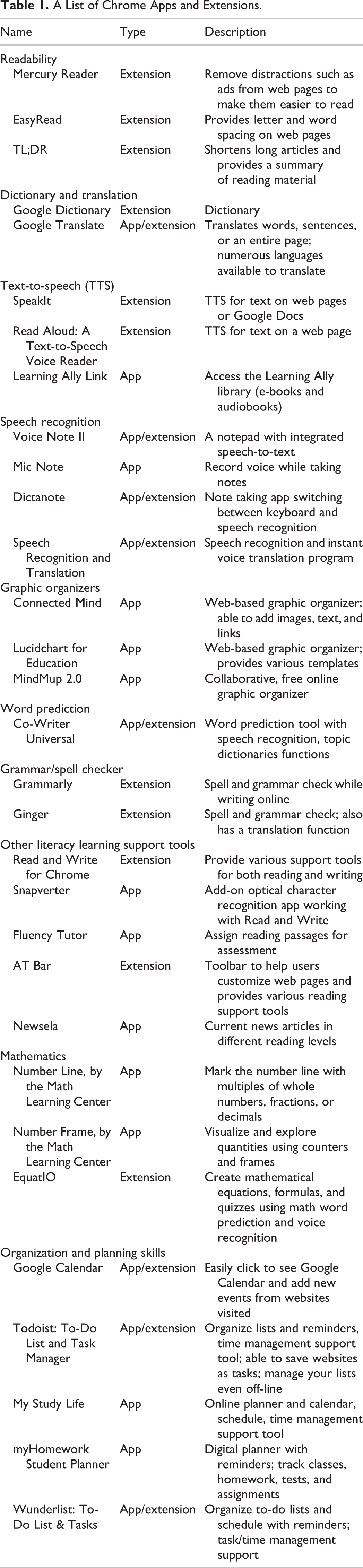
Table 1 represents a list of Chrome apps and extensions that can provide various learning supports for students in inclusive classrooms. The tools are organized by (a) literacy (readability, dictionary and translation, TTS, SR, graphic organizers, word prediction, grammar/spell checker, and other literacy learning support tools), (b) mathematics, and (c) organization and planning. Most of the apps and extensions are free or “free lite” versions (free with limited functionality) are available; we provided cost information if the apps and extensions are needed to be paid (see Table 1). We describe how the tools provide assistive support and flexibility to support varied learning needs.
A List of Chrome Apps and Extensions.
Sidebar: Installing Google Chrome Tools: Where to Start
Use the Google Chrome browser Google Chrome is the default preinstalled browser on Chromebooks. It is available for free download (https://tinyurl.com/yavhewzp) on Macintosh and Windows computers. Log into your Google account (or students’ accounts) to download apps/extensions for use across devices (for students younger than 13 years of age, parents need to create an account.) Search for apps/extensions on the Chrome Web Store (https://tinyurl.com/42zq5j5) *Using the search engine on the top left side of the screen, type the name of apps/extension or search for the features you need (e.g., dictionary, calendar). *Refine your search by selecting specific features (e.g., runs off-line, free, works with Google Drive). You can also filter your search to look for tools with high ratings. Evaluate apps/extensions *Read the descriptions of each app/extension provided by the developer. *Review the comments posted by other users to determine whether the app/extension is useful. *Search and view the tutorials on YouTube or on the websites if available. *Test the app/extension to evaluate whether its features are useful for your purpose (e.g., effective features that align with instructional objectives and student needs, ease of use). Add the app/extension Click on “+ Add to Chrome” located next to the name of the app/extension. Locate apps/extensions *Recommendation: Download “Extensity” or “Extensions Manager.” These extensions organize apps/extensions and allow you to turn each extension on and off easily. You can also delete or toggle on/off each extension in the Chrome browser’s “More Tools” menu. *Go to chrome://extensions/ to see all your extensions listed in one place. Icons for each installed extension appear on the Chrome toolbar. *Go to chrome://apps/ to see all apps in your account.
Literacy
Readability
Students with disabilities (e.g., LD, attention deficit hyperactivity disorder [ADHD], and intellectual disabilities [ID]), struggling readers, and students who have difficulty with organization can benefit from having access to uncluttered and double-spaced reading passages (Cumley, 2009; Learning Disabilities Association of America, n.d.). Students often use websites for finding information or doing schoolwork. However, many websites include distractions such as advertisements. To make websites easier to read, students can use the following Chrome extensions. Mercury Reader removes advertisements from web pages and EasyRead can adjust letter and word spacing on the web pages. In addition, TL;DR can shorten long reading passages and provides a summary of the passages. Students can select a small, medium, or large summary length. The extension can help students read and comprehend lengthy passage on web pages. Teachers can also use it to prepare reading passages of varying lengths and levels to provide levels of support. For example, they can shorten the passage using the extension and then change the level of vocabulary to create leveled reading passages.
Dictionary and translation
Vocabulary is an essential component for reading comprehension, but many students including students with LD, struggling readers, and ELLs can use extra support to learn and practice vocabulary (August, Carlo, Dressler, & Snow, 2005; Jitendra, Edward, Sacks, & Jacobson, 2004). Google Dictionary can help students find the definition of specific words in a quick and easy way. They can double-click any word on web pages or copy and paste a word into the Google Dictionary toolbar to see its definition. In addition, students can highlight or right-click on any word to use Google Translate. It translates each word, sentences, or the whole reading passage into other languages. Numerous languages are available for translation, so the extension can benefit language learners.
Text-to-Speech (TTS)
TTS allows students to listen to words or sentences that are difficult to decode and is often used as AT for students with disabilities who struggle with reading (Park et al., 2017). TTS is also used to help students read text at the level they should be reading (Wood, Moxley, Tighe, & Wagner, 2018). TTS can have a positive effect on acquisition of reading skills including decoding, word recognition, fluency, and comprehension (Izzo, Yurick, & McArrell, 2009; Raskind & Higgins, 1999; Stodden, Roberts, Takahashi, Park, & Stodden, 2012). TTS can also be helpful to students who benefit from listening while reading. Reading while listening to the words being read aloud can reduce cognitive load for students and enhance their comprehension of text.
SpeakIt and Read Aloud are Chrome extensions that provide TTS functionality. These extensions provide TTS for text on web pages and/or Google Docs. Users can select the text to read aloud and then click on the icon. They can also adjust settings, such as the types of voices, speed, volume, and/or text highlighting. In addition, the Learning Ally Link app provides access to the Learning Ally library, which provides a tremendous selection of e-books and audiobooks that are helpful for students who struggle with reading paper-based text (e.g., LD, visual impairment, and physical disabilities); students who have literacy-related disabilities can sign up for a free Learning Ally membership.
Speech Recognition (SR)
SR transcribes spoken words into text and has traditionally been used as AT for students with disabilities having difficulties with writing (e.g., LD, physical disabilities; MacArthur, 2009). SR is also referred to as “speech-to-text” and dictation. SR can help struggling writers bypass barriers with writing and allow them to compose longer and higher quality writing than handwriting (Graham, 1999). Voice Note II and Dictanote allow students to write while switching between a keyboard and SR. Using Mic Note, students can record their voice while taking notes. These tools can help struggling writers who have difficulties with note-taking during their classes due to challenges with reading, writing, and/or organization skills (Boyle & Forchelli, 2014). In addition, Speech Recognition & Translation allows students to use SR and translation features. The app allows them to save and share their writing easily.
Graphic organizers
Graphic organizers help students who have difficulties with organizing their ideas for writing (e.g., students with LD, ADHD, ID). They are often used in writing instruction as a cognitive strategy for supporting struggling writers (Graham, 2006). Graphic organizers can be used as students brainstorm and categorize ideas, before writing. They can benefit all learners who like to organize their ideas in a visual or graphical format. Connected Mind, Lucidchart for Education, and MindMup 2.0 are web-based graphic organizers. Adding functionality to paper-based graphic organizers, students can add not only text but also images, audio clips, and hyperlinks as part of their concept maps. Digital graphic organizers also include various templates and features that allow students to collaborate as they create their visual maps.
Word prediction
Word prediction provides a list of potential words to use, predicting what the user intends to write based on the initial letters, grammatical cues, and/or recently used word data. This allows users to simply select words from a list instead of typing full words. This feature was originally developed for people with physical disabilities, helping users type with a minimum number of keystrokes. However, it can benefit struggling writers who have difficulty with spelling and vocabulary (e.g., students with LD, ELLs, ID; MacArthur, 2009). Using word prediction, students can use more complex vocabulary, improve writing quality and quantity, and increase motivation to write (Peterson-Karlan, 2011; Tam, Archer, Mays, & Skidmore, 2005). Co-Writer Universal is a word prediction tool with SR. Students can use the feature with Google Docs and other web pages. Co-Writer Universal has a free trial period after which there is a cost for the app.
Grammar and spell checker
Struggling writers (e.g., students with LD, ELLs) experience difficulties with spelling and grammar when editing and revising their writing. Grammar and/or spell checkers can help students reduce errors in their writing. The tool informs students of errors in grammar and spelling and can also provide suggestions on how to correct the errors. The tools can benefit struggling writers by helping them produce technically accurate writing (Peterson-Karlan, 2011). Grammarly and Ginger are grammar and spell checkers that can be used while drafting text and for reviewing written passages. Grammarly and Ginger have a free version that provides basic grammar and spelling check. The paid versions provide more professional proofreading. Ginger also has a translation function, which can be helpful for ELLs.
Other literacy learning support tools
Text Help’s Read and Write has been a popular and robust literacy support tool that has been on the market for many years; this software provides various reading and writing support tools such as TTS with dual highlighting (which highlights a sentence in one color and the word being read aloud in another), word prediction, dictionary, and SR. Text Help has developed a browser-based version of this literacy support tool called Read and Write for Chrome. Read and Write for Chrome extension incorporates reading and writing supports within the Chrome browser environment, allowing the user to apply various useful literacy support features to web pages and Google Docs. To support reading, Read and Write for Chrome has a screen mask feature, TTS with dual highlighting, vocabulary lookup, annotation highlighting, and conversion of text to MP3. To support writing, this extension includes a dictation and word prediction. It also has a useful “fluency tutor” function. Students can listen to a passage using the TTS feature and then read aloud while being recorded. They can send the recorded passage to the teacher, who can use the audio file for assessment. (Fluency Tutor is also available as a separate app.) Read and Write for Chrome is free for teachers (https://tinyurl.com/ybj3rqcl).
Other apps and extensions support literacy skill acquisition. Snapverter is an optical character recognition app that allows users to turn scanned materials into digital text that can be read using TTS. It can help teachers easily convert their hard copies of class materials into a digital file. Using the digital version of the classroom texts, students can access the literacy support features of Read and Write. AT Bar is a toolbar that helps users customize web pages (e.g., adjust font size) and provides various reading support tools such as TTS and a dictionary. Last, Newsela is an app that provides current news articles in different reading levels for elementary and secondary students. Teachers can find different reading-level materials for the same news articles. Students can also use Read and Write or AT Bar to read the passages.
Mathematics
Some students with disabilities (e.g., LD, ID) experience difficulty with learning mathematics because of weak conceptual understanding of mathematics topics. Researchers have recommended virtual manipulatives (VM) to support the development of conceptual understanding (Shin et al., 2017). Recent research (e.g., Bouck, Chamberlain, & Park, 2017; Bouck, Satsangi, Doughty, & Courtney, 2014) supports the use of VM to help diverse students including students with LD, ASD, and ID improve their mathematics learning. The Math Learning Center (https://tinyurl.com/jtr5r48) provides web-based, Apple, and Chrome math apps. Although only two apps are listed in Table 1, the Math Learning Center website provides various VM apps for fractions, geoboard, number frames, number lines, and pattern shapes. When teachers do not have the appropriate physical manipulatives, the apps can be adapted and used for supporting students’ mathematics learning.
EquatIO is a program that helps students who have difficulties with writing mathematical equations and formulas. It provides mathematics word prediction, and students can also use SR for writing equations and formulas. Teachers can also easily create quizzes that include complex equations and formulas using Google Forms. EquatIO is free for teachers (https://tinyurl.com/y7cv8f46); with the free subscription, teachers can use all premium features of the paid version at no cost.
Organization and Planning
Executive functioning skills are essential for academic success, allowing students to plan, organize, strategize, and regulate how to approach and complete tasks (Watson, Gable, & Morin, 2016). Students with disabilities such as LD and ADHD who need support with executive functioning skills can benefit from tools that support organization, planning, and memory. Apps and extensions that can support these skills include Google Calendar, Todoist, My Study Life, myHomework Student Planner, and Wunderlist. Using these apps, students can keep track of their classwork, homework, and their progress on assignments. The apps can be set up to send personalized and timely reminders to students' devices. Because Chrome apps can be used across multiple devices, these apps can be useful at school and at home to help students organize their time and tasks.
Evaluation on Apps and Extensions
It is essential to evaluate apps and extensions to determine whether they support instructional objectives and meet the needs of learners. Because there are many apps and extensions available, it can be challenging to make determinations about which ones are best based just on reading reviews. In addition to reading descriptions provided by the app/extension developers and review comments posted by other users on the Chrome web store site, it is useful to consider the features and supports they provide in relation to instructional objectives (Cooper, 2012). Evaluating whether tools include effective features that align to instructional objectives and integrating those tools meaningfully are essential aspects of supporting students (Vrasidas & Glass, 2010). Teachers can also consider the technical features such as overall functionality and ease of use as they make decisions about which tools to incorporate. Developers and users sometimes make instructional videos about apps and extensions and post them online (e.g., on YouTube); these can be useful resources to review to see apps/extensions in use as part of an evaluation.
Example: Integrating Apps and Extensions in the Classroom
Ms. Davis teaches 11th-grade social studies in an inclusive classroom setting. She has a range of students including students who are culturally and linguistically diverse and have varied levels of English proficiency. Three students are identified with LD, one student with autism and two students with ADHD. Due to the students’ varied literacy and language experiences and backgrounds, Ms. Davis knows that she needs to proactively provide supports to help students access grade-level reading material and to comprehend complex concepts related to U.S. history.
In this secondary-level social studies class, lesson goals regularly involve understanding key historical and political events and their relevance and being able to make connections between history and current events. When she thinks about the barriers to mastering these goals and her students’ needs and learning preferences, Ms. Davis can identify some systematic and predictable aspects of learner variability. Many students find it challenging to access the complex language of the textbook for various reasons including their varied literacy backgrounds, disabilities, and proficiency with English. Some students need support with the mechanics of reading (decoding, fluency), some need supports for comprehension, and some need support for organizing and retaining information. Ms. Davis also realizes that assessments at the high school level often rely on written reports and quizzes/tests that pose barriers for several students.
Ms. Davis has access to Chromebooks for each student in her class. Over the course of the school year, Ms. Davis introduces various apps and extensions to her students, making sure that all students in her class get the opportunity to use each app/extension and reflect on whether it helps them. Her ultimate goal is to allow her students to be self-directed learners who know which tools help them learn, giving them the knowledge and ability to use those tools in other classes and with other tasks.
Ms. Davis is deliberate and intentional about how she introduces apps and extensions. She selects the apps and extensions in relation to goals of her lessons, introducing them when they can support specific tasks and activities. For example, during a lesson that requires reading complex content, she models how she can manipulate text on screen and reduce clutter with Mercury Reader. She also models how two extensions—Speak It and Read Aloud—have TTS functionality. She asks all students to use these three extensions and reflect on whether and how they were helpful for reading and comprehension. Students enjoy evaluating the tools, reflecting on what they find useful, and making decisions about whether they would use the tools again. This process ensures that all students try out the tools in the context of authentic activities and have the agency to decide which tools they would like to use in the future.
For an upcoming written report, Ms. Davis asks students to try out two digital graphic organizer apps—ConnectedMind and LucidChart—to organize main ideas and supporting points. Again, she asks all students to use the apps and evaluate which ones they like. In addition to giving the students a chance to experience both apps, the activity allows Ms. Davis to conduct some formative assessment on students’ knowledge of main and supporting points before they begin working on their written reports. Ms. Davis also encourages students to use the TTS extensions they downloaded before to play back their written reports. This helps some students identify errors in their reports. When students reflect on the use of these apps, their affinity for the apps/extensions reflects their variability. Students find different apps and extensions useful to them, and Ms. Davis encourages them to use those tools that help them learn. In this way, all students in this inclusive classroom get exposure to the tools and have the opportunity to make choices that work for them individually. For the students with disabilities who can benefit from the assistive features, Ms. Davis provides extra support as needed to ensure that they are using the apps and extensions that will support their needs.
Because Ms. Davis has introduced various apps and extensions within lessons over the course of a term and given students the opportunity to reflect on when and how they can use them, students are empowered to make their own choices as the school year progresses. Ms. Davis is pleased to see students go and get a Chromebook as needed to complete instructional tasks. Because students use the Chromebooks seamlessly and by choice, there is no stigma associated with the apps and extensions being available only for some. In addition, students who have access to technology at home can use the same apps and extensions useful to them to complete their homework and to support their learning in other courses as well. Ms. Davis’ integration of the apps and extensions in her inclusion class supports various UDL guidelines. She selects the tools to use in relation to her instructional goals, a key premise of UDL. She proactively designs her lesson, taking into consideration the tools that can support mastery of objectives. The TTS and graphic organizer apps and extensions provide options for perception (Guideline 1), vocabulary supports (Guideline 2), and comprehension (Guideline 3). Ms. Davis also integrates options for executive function (Guideline 6) and self-regulation (Guideline 9) by having students use the apps in context and reflect on the ones that are useful to them. Her integration of these tools provides students opportunities to express themselves in varied ways and to practice components skills with the support of digital tools (Guidelines 4 and 5). This integration of assistive tools as a natural part of instruction provides flexible and engaging environments for students, allowing them to make choices and utilize the tools that are most useful for them.
Conclusion
Chrome apps and extensions provide a wealth of free/low-cost solutions to provide supports that address various learning needs. These tools can be used as AT for students with disabilities, while other students without disabilities can also use them for supporting their learning. The tools can also provide individual choice and autonomy and optimize students’ motivation for learning, aligning with UDL guidelines for creating more inclusive environments in which all students can avail of supports as needed. Both general educators and special educators can benefit from using the wide variety of useful Chrome apps and extensions that are available and integrating these tools to support all students.
Footnotes
Declaration of Conflicting Interests
The author(s) declared no potential conflicts of interest with respect to the research, authorship, and/or publication of this article.
Funding
The author(s) received no financial support for the research, authorship, and/or publication of this article.
