



Abstract
Seven free notation apps for iPad are analyzed and described based on their usability in the classroom.
I frequently see music students writing or manipulating notation on whiteboard slates or paper while observing music classrooms. Some school districts are starting to adopt one-to-one technology, which means students are now walking around with high-tech whiteboards. Although mobile devices are used frequently by many, knowing what technology is available specifically for music education classrooms can be challenging. I became curious as to what apps may be available for iPads that would allow students to practice notation or compose. iPads were chosen because iPads seem to be the technology used most frequently as one-to-one in my current location.
Why These Apps?
To find the apps described in this article, I began by narrowing down a search string in the App Store. My first search, “music staff,” resulted in apps allowing staff printing as opposed to using staff for notation. “Music notation” was the subsequent search string, which helped me find the string “music composition.” After determining the best search string to find notation apps, the results were narrowed to free apps due to potential budgetary limitations for app purchases in schools. This left me with 29 apps to explore.
The 29 apps were then examined to see if the app allowed for composition using traditional notation and staff. After reading all the app descriptions and looking at available screenshots, seven apps were found that could be used to write traditional notation on staff.
The “Measuring Stick”
Knowing the time constraints of classroom teaching, I developed a rubric to determine usability of the selected apps for teachers and students. The following criteria were used to quantify the ease-of-use and potential training time for app use:
Clear Layout: Able to quickly identify terms and menus for use; functional screen presentation allowing for quick navigation of the app
Intuitive: How quickly can one go from idea to staff? How much training would students need to use the app?
Content Accuracy: When using this app with students, how well does the app model music content?
Playback Capabilities: Availability of instruments; score follows sound, etc.
Export Capabilities: How easy is it to share ideas with others (and in what format)?
Other notes: In-app purchases (and upgrade potentials) Other “bells and whistles”
The criteria were then used to build the rubric seen in Table 1.
App Rubric.
Free Notation Apps
Each app below is rated from 1 to 5, following the headings and criteria listed in Table 1.
Anyone Can Make Music
Layout: 4
The page layout is an open page with everything added from the tool bar. The open space helps the user assume a “drag to add” strategy. Although piano is one of the instrument possibilities, I could not find a way to make a grand staff. There are also limits to the amount of ledger lines allowed above and below the staff.
Intuitive: 4
This app is easy to use overall; simply drag all components to the page including the staff, the clef, and the pitches. Pitches and other components can be removed by dragging the component to the “trash can.” Other than losing my first song completely when I clicked the “+” button, this app is relatively straightforward. The “+” button is a new score button as opposed to a new track button—a lesson learned quickly when my work disappeared and a new track opened.
Content Accuracy: 3
Fractions are used to represent meter signatures. Even when placed on the staff, the meter signature continues to resemble a fraction. Measure lines can be placed anywhere; although four beats per measure are specified in the meter signature, the restrictions are not “locked in” for bar line placement. Pro: A teacher can check understanding based on placement. Con: Using this program will not guide early understanding. Accidentals are similar in that they can be placed anywhere on the staff and not restricted to typical location next to a notehead. The clef must be added at the beginning of each line manually. Flags do not connect to form bars over 8th/16th notes; all notes remain as individual notes.
Playback Capabilities: 2
Instruments available are limited to piano and violin; the violin has a shrill timbre in comparison with the piano. The app can play two pitches at once, and repeat signs are honored in playback as long as the beginning and end of the repeated section is set. However, there is no scrolling (i.e., following the pitches as the sound plays) of the pitches during playback.
Export Capabilities: 1
This app does not have export capabilities. A user can save in-app with account and share with others having an account. Users can also “follow” others music, which allows other users to play and open music from the share page.
NotateMe Now!
Note. Full version $39.99.
Layout: 4
This app has an opening “Please Read” section that appears upon opening the app for the first time. Reading this provides clues to the app interactions. Once the opening screen is closed, print and written notation for Amazing Grace is shown in two separate staves. Writing anywhere on the written notation staff results in changing the print notation above it. This gives the app an opportunity to learn the user’s handwriting as the user manipulates the written notation.
Intuitive: 3 for Teacher; 2 (Possibly a 1) for Students
Once the correct buttons are found, this app is relatively easy to use. The notation reader learns handwriting quickly. However, this would be much more difficult to use with students without explicit training on how to manipulate the app.
Content Accuracy: 5
This app warns when measure length has been exceeded with red notation on the print notation, not in the handwritten notation. Bar lines supposedly add as the user writes in notation, but the bar lines did not always appear. The app will not play the notation for any notes beyond what is allowed by the meter signature, which means the user will receive an aural warning in addition to the visual warning of too many beats in the measure. This app also has a large variety of clefs from which to choose.
Playback Capabilities: 5
The app has a large variety of instruments to use. Although you can write for any single instrument, this app only allows the user to write on one instrument exclusively per song/piece. The MIDI correlates to instrument selection (i.e., trumpet sounds like a MIDI trumpet). The staff does scroll with playback; the guide follows the print version only.
Export Capabilities: 4
Files can be exported in two sound formats: MIDI and XML. PDF is not available in this version, but this format is available in the full version of the app. A file can be shared via e-mail, but the file can only be opened with the app.
Other Notes
This app has undo/redo buttons that can be helpful when handwriting notation. One button (half note between two staff lines) embedded in the layout provides a symbol and notation helper. If the note/rest is not recognized through handwriting recognition, nothing is written on the staff. As aforementioned, only one staff at a time is possible without the full version. Some buttons available only work with full version.
Score Creator
Note. Upgrade to full version to get rid of ads.
Layout: 4
Up to eight different staves can be used at a time with various instruments from which to select. If piano is selected, the app creates a grand staff. The instrument names are shown next to the staves. The menu button is three lines in a box at the top right corner. From that button, the user can start a new song. The app does not allow touching the staves other than to select a measure. Instead, the layout includes notation available according to note length selected and note options, which crowds the screen slightly.
Intuitive: 4
No help button is needed to explore the app. However, not being able to touch the staff to add notes was different from most notation programs I typically use, which allow me to add the notation by touching the staff as opposed to strictly clicking and dragging.
Content Accuracy: 5
Once the meter is selected, notation adjusts using ties for anything over the bar line. Flags do not combine; every note is entered and seen as an individual note regardless of proximity to other notes that could be barred with the note. The meter signature is chosen as a fraction, but the meter signature is not shown as a fraction on the staff.
Playback Capabilities: 5
The MIDI sounds are affected by instrumentation, even in combinations of instruments. Many instruments are available for selection. The music scrolls along with piece during playback to allow the user to follow the piece in progress.
Export Capabilities: 3 (if Songs Under 20 Measures, if Not, Then 1)
Twenty measures of a song can be exported to PDF in this version, with a similar limit for MIDI format. In full version, files could be sent in PDF, MIDI, or XML formats. The upgrades for import and export capabilities is $4.99.
Other Notes
The user can duplicate a song with push of a button. Also unique to this app is a “Go to measure” feature that allows the user to go to a specific measure. This app allows the user to add lyrics into the staves. Prominent undo/redo buttons are available.
Studiolab
Layout: 3
Many buttons framing the work area create a cluttered workspace. The clutter makes it difficult to tell visually where to begin. The black background also makes the icons a bit difficult to see.
Intuitive: 1
Although I was able to figure out a few things without help, I was not be able to continue in this app without the tutorial. Reading the tutorial did not solve the issues I had navigating the app, unfortunately.
Content Accuracy: 4
Meter signatures are shown as fractions during selection, but the fraction is not shown when the meter signature is on the staff. Flags connect when two eighth notes occur on the same beat. This app also allows the user to see both a notation version and a contour version of the melody created.
Playback Capabilities: 5
Many instruments options are available in this app. A dot scrolls over the staff during playback.
Export Capabilities: 4
Sound formats available for export are MIDI and mp4. Songs can also be exported as a PDF file.
Other Notes
Files can be exported to Dropbox. Lyrics can be added be to the song.
Stave’n’Tabs
Layout: 4
Thin tool panels on either side of the workspace make this app relatively easy to navigate. Composition can be completed using an on-screen keyboard. When the notes are entered, tab automatically appears below each note. The user can select visibility of tab and/or staff depending on preference.
Intuitive: 4
Although relatively easy to start, help slides made navigating the app easier. The help slides made it possible to find other options not originally found after examining the layout; but the help slides were used minimally as the labels and icons were clear.
Content Accuracy: 4
Fractions are shown for meter signatures on the meter selection button, but this does not transfer over to the staff. Eighth notes and 16th notes automatically bar when on the same beat.
Playback Capabilities: 5
Variety of sounds are available without in-app purchases, but the options increase greatly with the in-app purchase. The song scrolls during playback.
Export Capabilities: 2
Files created in this app can be exported, but the only format is the app format itself. No external formats are offered in this app.
Other Notes
In addition to an on-screen keyboard, the user can scroll through the score with a staff selector. In-app purchases include “advanced composing,” “additional instruments,” and “unlimited projects.” Each upgrade can be purchased for $0.99.
iWriteMusic
Note. Free; Full Version 8.99.

Layout: 4
The layout is clean and open. There is an extensive toolbar available in this app that expands when the “more” button is clicked. The initial trial allows for on-screen keyboard entry, but this feature is disabled after 20 days.
Intuitive: 4
Minimal help was needed to use the app, but the tutorial was helpful with specific details. Discovering how to put notation on the staff with toolbars provided was easy; just a bit of clicking and experimentation was needed.
Content Accuracy: 4
Meter signatures are shown as fractions during selections, but the line disappears on the staff. Notes appear individually when entered, but flags can be converted to bars after entry where applicable.
Playback Capabilities: 5
Many instrument options are available, and the song scrolls with playback. Note: There are addition playback options available as an initial trial; these options are disabled in free version after 20 days (i.e., swing option, loop, etc.).
Export Capabilities: 4
Files can be exported in JPG and PDF formats. Songs can also be exported in the app format. MIDI is not available in the free version, but this format and the ability to import iWriteMusic files are available in the full version.
Other Bells and Whistles
Lyrics can be added to the score.
Melody Pro
Note. There is a Lite version that does not allow playback (upgrade to Pro free).
Layout: 4
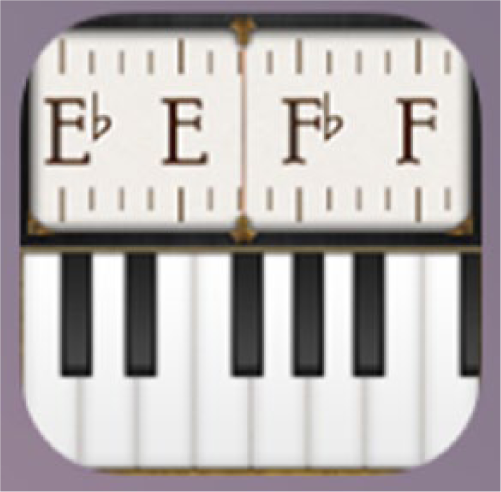
Clear layout overall; this layout is one of my favorites in which it has an antiqued piano feel. The on-screen keyboard invites the user to play it, which immediate enters notation on the staff located above the keyboard.
Intuitive: 1
The piano can be used to add notation to the staff, but the only available note length is 16th notes. The other option is to drag notation to the staff. Beyond what I discovered by clicking and dragging, there is no help button to show other options for the composition.
Content Accuracy: 1
Notes on the staff could be entered on top of each other. No bar lines appeared based on the meter signature, and no buttons were available to add bar lines. Although included in the Lite version, no clef options were available in this version.
Playback Capabilities: 1
Although playback was purported in this Pro version, I could not get the sound to work. No additional settings were found.
Export Capabilities: 1
No export capabilities were found.
Conclusion
Using technology can be a risk, especially when using unfamiliar or new apps. The apps described above have strengths and weakness. Hopefully the analysis above shows some potential benefits and pitfalls of each app that could be used for free in a one-to-one classroom. These apps may also offer students another option for music composition both at school and at home.
Footnotes
Declaration of Conflicting Interests
The author(s) declared no potential conflicts of interest with respect to the research, authorship, and/or publication of this article.
Funding
The author(s) received no financial support for the research, authorship, and/or publication of this article.