



Abstract
Due to the COVID-19 pandemic, many schools have been teaching music online. This is the second column of a two-part series exploring this topic. In this column, I discuss how general music teachers can share prerecorded lessons that contain interactive questions using Microsoft Stream and Forms.
Keywords
The COVID-19 pandemic continues to cause significant disruption around the world. Many schools have been conducting lessons online, so that students can continue to learn remotely. This is the second of two columns, exploring online learning in general music. Refer to Norman (2021) for information about how to create prerecorded lessons using Microsoft PowerPoint. This column discusses how prerecorded lessons, containing interactive questions, can be shared online using Microsoft Stream and Forms. Steps 5 to 7 in the flow chart outlines the entire process for developing a prerecorded music lesson for online learning (see Figure 1).

Process for preparing a prerecorded lesson for online learning.
Once a PowerPoint presentation has been exported to video (see Norman, 2021), teachers will need a platform through which they can share their prerecorded lesson with their students. Each school may have a preferred platform for sharing content online. For example, at the school in which I work, we have a Virtual Learning Environment, called the Portal. When transitioning to working remotely, we decided to use this platform to manage our online learning. Our Virtual Learning Environment is managed within the school, but provided by a company called Schoolbox. Other schools may use services provided through companies, like Google and Microsoft. As Office 365 is widely used by schools (Microsoft, 2018), I will discuss the applications of Stream and Forms. 1
Stream
Stream is Microsoft’s platform for sharing videos online within an organization. To upload a video to Stream, you will first need to login into your Microsoft Office 365 account. From here, Stream can be selected as a web-based application (see Figure 2). Video files can be uploaded to Stream by selecting, “Upload Video.” Once uploaded, these videos can be shared with specific people or groups within your school. However, I recommend that you discuss using Stream with your school leadership and IT teams to ensure both a uniform approach to sharing content online and so that all staff and students will have access when learning remotely (Vardanega, 2019). To share videos with students, you can create groups for classes or entire year levels. These groups need to be set up with appropriate permissions. For example, teachers need to decide if students should be able to upload and modify videos. Channels can also be created, which are a useful way of organizing videos according to topics, units of work, or teaching periods (Vardanega, 2019). Links to webpages providing further instructions on how to use Stream are provided in the Supplemental Material (available online).

Stream and Forms.
Once a video is uploaded, Stream will automatically generate a transcript for the video (see Figure 3). However, there may be some errors, so it is necessary to check for mistakes. The transcript can be edited and searched, which will take you to different points within the video. There is also an option titled, “Interactivity,” which allows you to attach one or more Microsoft Forms. This is a useful feature in Stream, as teachers can create questions and attach those to specific points within a video’s timeline (see Figure 4). Students can answer these questions and receive immediate feedback for certain question types, like multiple choice and short answer. This provides another avenue through which teachers can create interactive elements for prerecorded lessons, which ideally will make such lessons more engaging for students.
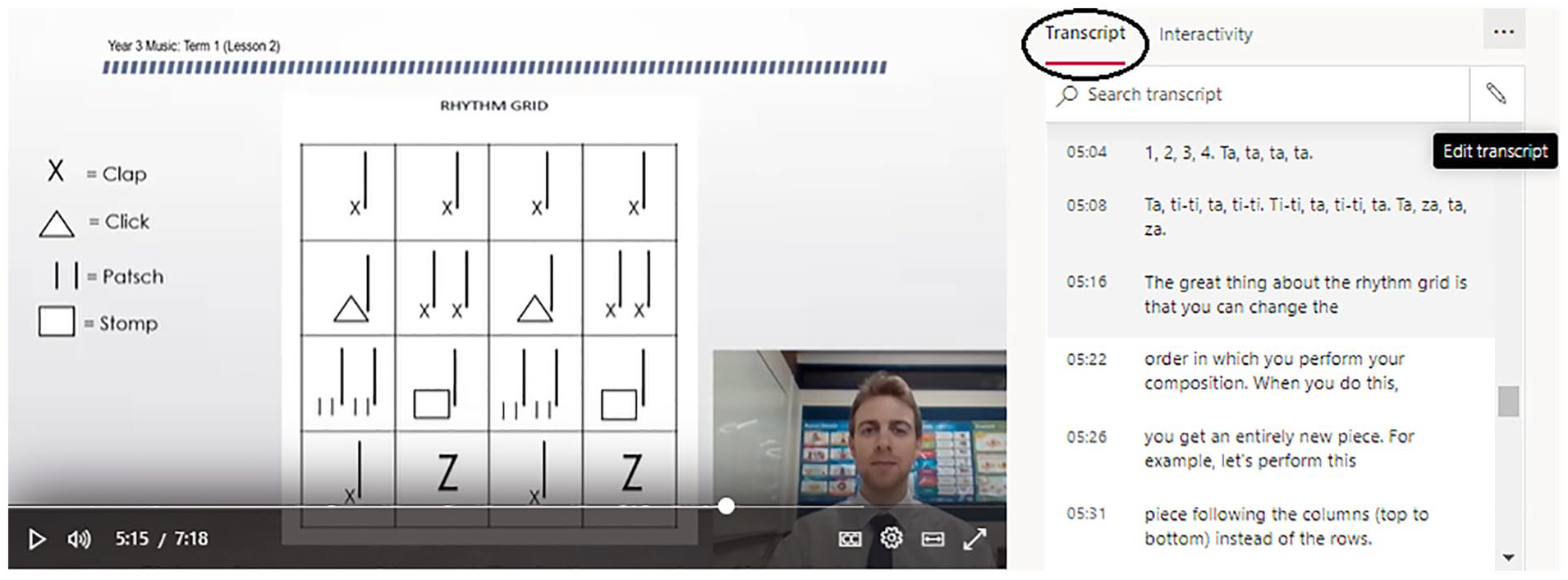
Transcript of a video on Stream.
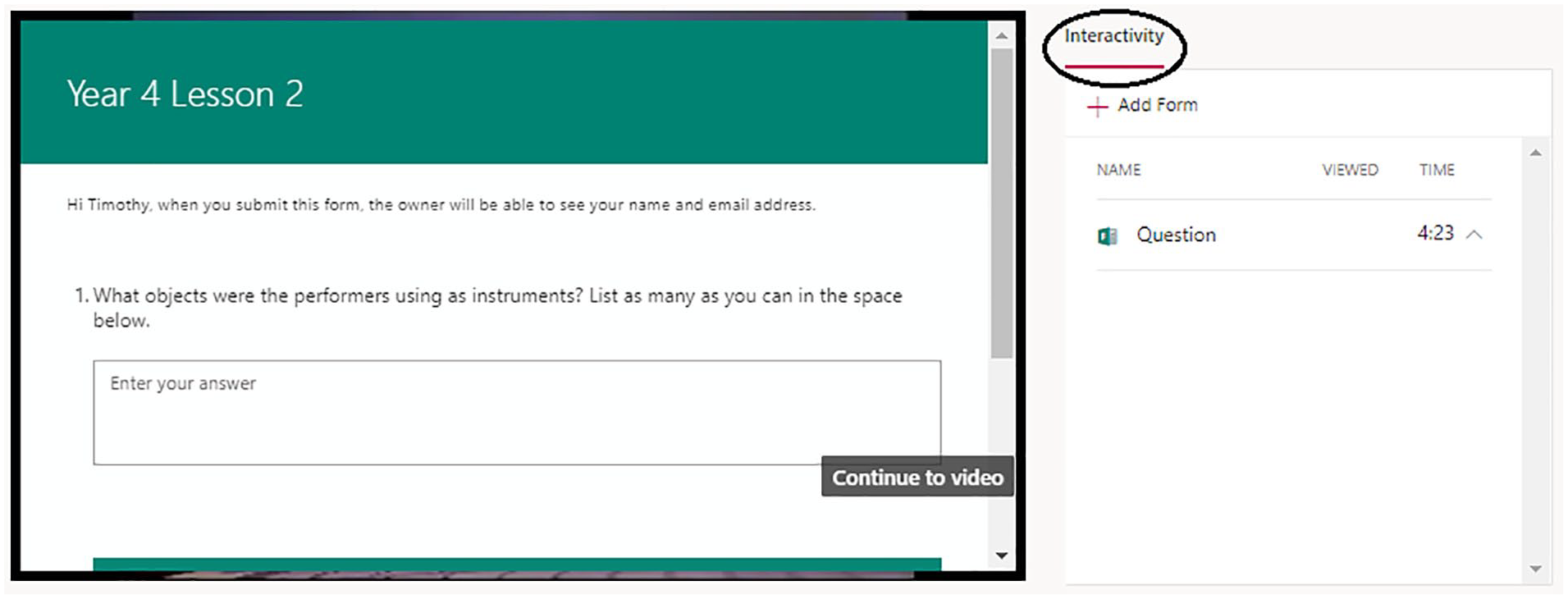
Quiz embedded into a video on Stream.
Forms
To add interactive questions to a video in Stream, a quiz must first be created in Forms. This can be achieved by opening Forms and selecting, “New Quiz.” It is important that “New Quiz” rather than “New Form” is selected, as the latter does not allow correct answers to be specified. From here, you can select from various question types, including multiple choice, long and short answer, ratings, date, net promoter score, and Likert-type scale questions (see Figure 5). Immediate feedback can be given for some question types like multiple choice; however, this feature is not available for long answer questions, which require individual marking. It is also important to note, that if you intend to post multiple questions, which are each attached to separate points within a video, a single quiz can be used, but students will need to refrain from selecting, “Submit” until all questions have been answered. Otherwise, students will be submitting the same quiz several times. Alternatively, a separate quiz can be created for each question, or one quiz containing all questions can be placed at a single point within a video.

Questions tab.
Student answers can be analyzed through selecting the Responses tab (see Figure 6). From here, the results for all students, who have completed the quiz, can be viewed. Through selecting, “Review answers,” you can provide feedback to students through a comment and grade for each question. When you are ready to publish this feedback to students, the next step is to select, “Post scores.” Student responses with teacher feedback can also be exported to an Excel document.

Responses tab.
Summary
Stream and Forms are applications that can be used to share prerecorded lesson videos containing interactive questions with general music classes. The ability to create questions in Forms and attach these to specific points within a video in Stream is useful, as it affords teachers the opportunity to assess their students’ understanding and provide feedback remotely. While questions do not need to be added to every lesson video using Stream and Forms, it is a useful feature providing students with another way in which they can interact with a prerecorded lesson.
This column, the second of a two-part series (see Norman, 2021, for Part 1), explores how general music teachers can use Microsoft Stream and Forms to share prerecorded lessons that contain interactive questions. Other applications can be used to achieve similar results. However, I have focused on PowerPoint, Stream and Forms in this series, as Office 365 is widely used by schools (Microsoft, 2018). Also worth noting, is that many teachers are delivering lessons in real-time through video conferencing software, like Zoom and Microsoft Teams, during the COVID-19 pandemic. Teaching via this medium presents a different set of challenges for general music educators and is a topic for another column. In sum, Microsoft PowerPoint, Stream and Forms are useful applications that general music teachers can use to create engaging and interactive music lessons for online learning during the COVID-19 pandemic.
Supplemental Material
sj-docx-1-gmt-10.1177_10483713211034440 – Supplemental material for Teaching Music Online: Using Microsoft Stream and Forms to Share Prerecorded Lessons
Supplemental material, sj-docx-1-gmt-10.1177_10483713211034440 for Teaching Music Online: Using Microsoft Stream and Forms to Share Prerecorded Lessons by Timothy David Norman in General Music Today
Footnotes
Acknowledgements
The author would like to acknowledge David Perfect for his insights regarding using both Microsoft PowerPoint and Stream for online learning.
Declaration of Conflicting Interests
The author declared no potential conflicts of interest with respect to the research, authorship, and/or publication of this article.
Funding
The author received no financial support for the research, authorship, and/or publication of this article.

Supplemental Material
Supplemental material for this article is available online.
Notes
Author Biography
References
Supplementary Material
Please find the following supplemental material available below.
For Open Access articles published under a Creative Commons License, all supplemental material carries the same license as the article it is associated with.
For non-Open Access articles published, all supplemental material carries a non-exclusive license, and permission requests for re-use of supplemental material or any part of supplemental material shall be sent directly to the copyright owner as specified in the copyright notice associated with the article.
