




Abstract
Summary
The way that PubMed results are displayed can be changed using the
Introduction
This series of articles provides an overview of PubMed/MEDLINE, introduces some of the recent features and provides hints about more efficient searching. The first article described the historical development of PubMed, how to perform a basic search and various parts of the result screen. Part 2 covers display settings, building complex search queries and searching for topics.
How do I change the display?
After a search, the way that the results are displayed can be changed using the
The options available in the
In the
The results are sorted in descending order by the date of the record's addition to PubMed. Until recently, this was one of the main drawbacks of PubMed in comparison with rivals such as Google Scholar: most users prefer to see the most relevant results at the top of the list. Recently, a ‘Sort by relevance’ function has been introduced.
The
Any change to a display setting is only retained for the current search, and will be reset to its default values (summary format, 20 per page and sorted by recently added) if you launch another search. You can permanently customise the display settings to suit your own preferences using My NCBI (see Part 3).
How can I manipulate the results?
Normally you will not be interested in examining all the results of a search, but will want to select some of them after looking at the title, abstract or other bibliographic information. Then you may wish to print them or manage them electronically in various ways. There is no print command in the PubMed interface, so you need to use the print command from your web browser (the shortcut key is Ctrl+P) to print items. In this case, PubMed will remove the header and sidebars, and arrange the results in a print-friendly format.
Selecting records of interest
Next to each record there is a check box that allows individual records to be selected by clicking the box (Figure 7-B). After selecting the records of interest, you can choose from the
How can I point out an article to my colleagues?
Every record in an electronic database has a unique identifier in that database. It may also have a global identifier that is independent of the database (such as a DOI). To point out an article which is available in PubMed you can use its PubMed Identifier or PMID.
The PubMed identifier
When a new record is added to PubMed, it is assigned a unique number, the PMID. This is currently an 8-digit number (e.g. 23209265) which the database requires to store, search and retrieve information. Because it uniquely identifies the record, this number can be helpful for pointing to an article (e.g. in the body of an email). It can also be used to obtain a hyperlink to a specific article (e.g. to paste into the list of publications in your CV).
To obtain the hyperlink for a specific article, you can simply click on the title of that article to show it in the abstract view. The resulting URL that appears in the address bar of the browser (e.g. www.ncbi.nlm.nih.gov/pubmed/24197398) will be the unique hyperlink referring to that specific article. This URL can then be copied into the body of an email message or entered as a hyperlink into a list of publications.
Although this technique is very quick, it is only capable of pointing to one article at a time. An alternative way of sharing multiple PubMed records with others is to create a Collection in My NCBI and share it using the unique URL that NCBI assigns to that collection. This is explained in Part 3.
Every number that is entered as a search term in PubMed is treated as a PMID by default. That is why you cannot search for the papers published in 2013 simply by entering ‘2013’ in the search box. Such a search will result in the article whose PMID is 2013 (which was a paper published in 1976). To search for papers published in 2013, use ‘2013[DP]’.
DOI
The PMID is a proprietary identification system of the NLM which uniquely identifies records located by PubMed. In the year 2000 a global identification system was developed for items that are published digitally and available on the Internet. This is called the Digital Object Identifier or DOI. For example the DOI assigned to a paper published in the JTT will be of the form 10.1258/jtt.2012.GTH108. DOIs are issued by the registration agencies which are members of the International DOI Federation. Each DOI comprises two parts, a prefix and a suffix, which are separated by a slash (/). The prefix identifies the relevant source (e.g. the publisher) and the suffix identifies the item (e.g. the paper in a journal). The combination of prefix and suffix provides each digital item with a unique identification, which can be linked to its location on the Internet. The DOI was introduced to rectify the problem of broken links for items published online by providing a more stable link to each object regardless of its location on the Internet. So if the web address of a digital item changes over time (a broken link), it is enough to update the link to the item that is stored as metadata with the DOI, while the DOI itself remains unchanged. NLM stores the DOI of an article in the [AID] field (article identifier).
How do I find related citations?
A very useful feature of the PubMed search engine is its ability to provide a list of records which are similar to a specific article (or relevant to the topic of your search). This is called
How do I create a list of references?
To obtain the bibliographic information of the articles from your results page (e.g. to prepare a list of references when writing a paper without the benefit of citation manager software) you can simply change the display setting to
To prepare a list of citations for several articles, you can add the articles to the Clipboard (see below) and then display the contents of the clipboard and follow the above mentioned steps.
How do I store the results of my searches?
When performing a PubMed search, you sometimes need to accumulate a selection of records from various searches temporarily in order to perform one or more commands on them all together. For example in a search with several strategies, you may wish to consolidate all the results in one place. This can be done using the PubMed Clipboard (this should not be confused with the clipboard of the operating system which is handled by, for example, Ctrl+C/Ctrl+V in MS Windows.) The PubMed Clipboard is a temporary space on the PubMed servers that can keep up to 500 records for you while you are working with PubMed; the contents are deleted after eight hours of inactivity. In the search results page, you can copy selected results to the Clipboard using the Results of a simple PubMed search. Results page after adding one item to the Clipboard.
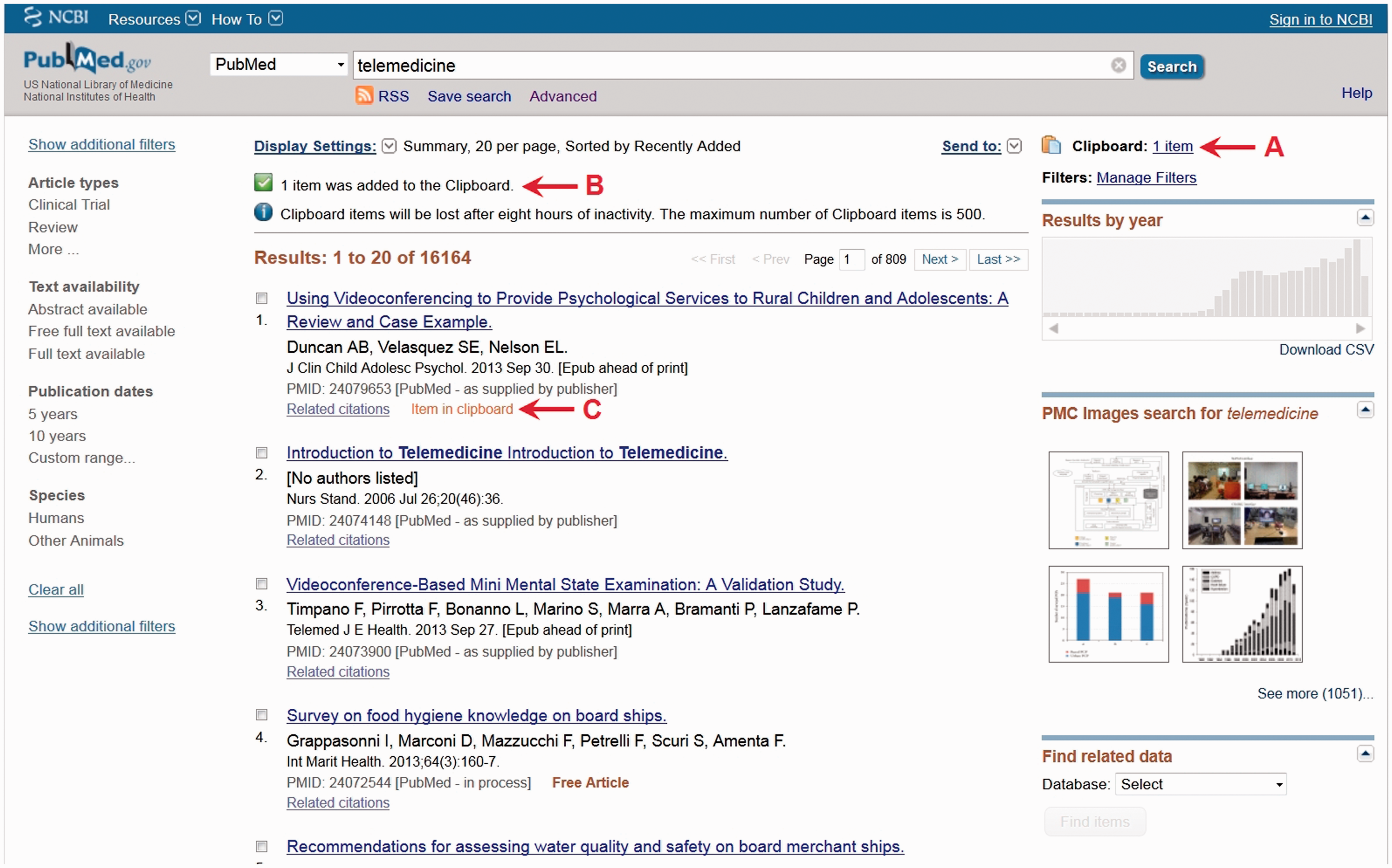
Each time items are added to the Clipboard, the PubMed interface will acknowledge the operation with the sentence ‘nnnn item(s) was added to the Clipboard’ (Figure 8-B) and a short notification ‘Item in clipboard’ will appear underneath each added item (Figure 8-C). No more than a single instance of each record can be stored in the Clipboard, so if you try to send an item to the Clipboard which is already there, it will prompt ‘The selected items have already been added to the Clipboard, no new items were added’. To permanently save the records stored in the Clipboard, you can store them locally on your computer using
How is a complex search constructed?
You can develop more complicated search queries by using features such as Boolean logic, exact phrase searching and truncation. These are all available via the PubMed interface.
Boolean operators
Boolean operators allow two or more search terms to be combined according to logical rules. PubMed accepts three Boolean operators: AND, OR, NOT. These Boolean operators need to be entered in upper case. However, you can use the ampersand character (&) instead of AND, and the pipeline character (|) instead of OR. The combined terms can be key terms or concepts (e.g. ‘diabetes AND hypertension AND genetics’) or a combination of different types of terms such as a concept, an author and a country name (e.g. ‘Smith AND diabetes AND Canada’).
AND will produce a set of records in which each article contains all of the search terms. For example ‘telemedicine AND diabetes’ will retrieve the articles that concern both telemedicine and diabetes. AND is the default operator when more than one term is entered in the search box without any operator or double quotation marks.
OR will produce a set of records in which each article has at least one of the search terms. Typically it is used when searching for similar topics or concepts such as ‘telemedicine OR telecare’, or when searching for different topics which are each of interest such as ‘asthma OR diabetes OR hypertension’.
NOT is used for producing a set of results in which articles about the term after NOT have been eliminated. This operator is mainly used for the topics or concepts that could be used interchangeably. For example ‘telemedicine NOT telehealth’ will retrieve the articles that have discussed telemedicine, but do not include the term ‘telehealth’. This operator should be used cautiously since it is easy to eliminate relevant articles from the result list.
When more than two Boolean operators are used in a search query, parentheses should be used to indicate the intended order of operations. If no parentheses are used in a search query with more than two Boolean operators, the operations will be executed from left to right. For instance, to search for the articles on psychiatry that have discussed telephone or mobile communication, the correct query is: ‘psychiatry AND (telephone OR mobile)’. If the search query is entered without parentheses (i.e. ‘psychiatry AND telephone OR mobile’) it will be interpreted as ‘(psychiatry AND telephone) OR mobile’ by PubMed -- this will produce a very different set of results.
Exact phrase searching
There are many situations where you need to search for an exact phrase. For example, you might wish to locate a paper and can recall a specific phrase in its abstract, or you might want to identify a famous quotation, or simply a condition that if entered otherwise could end up with many non-specific results, such as ‘low back pain’. Like many general search engines, to search for an exact phrase in PubMed, it should be enclosed in double quotation marks “”. In an exact phrase search, the spelling and order of the terms are important but PubMed is not sensitive to the capitalisation. Extra space between terms is ignored, but if two terms are attached together, they will be considered as a single term, for example “videoconferencing” (1433 hits) is different from “video conferencing” (254 hits). This is especially important when searching documents for the purpose of a systematic review.
Entering the search term in quotation marks has some other effects on the way that PubMed searches, which you may find surprising. For example, searching PubMed for telehealth returns 16,525 results, but if you enter “telehealth” as the search term, there will be ten times fewer results (1619 hits). This is because using “” around search terms, instructs PubMed not to perform Automatic Term Mapping for the exact phrase, even though it is a single-word term. In this example, when telehealth in entered without “”, it will be automatically mapped to telemedicine which is a MeSH term, and thus the results will include all the articles that include telehealth in any of their fields as well as all the articles that have been indexed with telemedicine as a MeSH term.
Truncation
If you want to search for all the terms that begin with the same few letters, such as child and children, or teleradiology and teleradiological, you can use an asterisk (*) after the stem (e.g. teleradiolog*). The asterisk is also known as the wildcard character. If the truncated term accounts for more than 600 variants, the first 600 terms will be used for the search and PubMed will display a warning, recommending that you lengthen the root word to search for all endings.
Unlike other search engines where truncation would increase the number of results, using truncated terms in PubMed sometimes produces fewer results. 1 For example, a PubMed search for ‘telehealth’ returns 16,565 results, but ‘telehealt*’ produces only 1678 results. This is because truncation stops Automatic Term Mapping and the Automatic Explosion of MeSH terms. These two concepts are explained in Part 3. In other words, the search term ‘telehealth’ will return all the articles concerning telemedicine, telehealth, ehealth or mobile health, but ‘telehealt*’ will search only for articles that have used the nine terms that begin with ‘telehealt’ including telehealth, telehealthcare, and telehealthapplications (you can check these nine terms in the search details section of the results screen).
You cannot use the wildcard character (*) at the beginning or in the middle for a term. For example you cannot enter ‘colo*r’ to search for colour and color, because PubMed will assume the asterisk is one of the characters of the term, not a wildcard. Also truncation stops at the end of a term that is designated by a space, so you cannot truncate ‘diabetic*’ to search for multi-word terms such as ‘diabetic retinopathy’ or ‘diabetic nephropathy’.
How do I search for particular topics?
In PubMed the keywords that authors suggest (usually shown at the end of the abstract; Figure 9-A) do not play a major role in retrieving information, because not all journals require the authors to supply keywords for their paper, and even for those journals which do, not all of them send the keywords to PubMed. Instead PubMed uses MeSH terms to describe the topics discussed in the articles (Figure 9-B). However, the process of indexing articles using MeSH terms is qualitative and potentially inconsistent. The results of a search in PubMed therefore depend on two factors: (1) whether appropriate MeSH terms were chosen and assigned to the records during the indexing process, and (2) whether appropriate search terms were selected by the user to construct the search query. The closer are these two factors, the better will be the results obtained. Obviously users only have control over the second factor (choosing the right search terms), so it is important to understand how MeSH terms are used for indexing PubMed records. This is described in the MeSH section in Part 3.
An abstract with the keywords suggested by the authors. Note the difference between the author keywords and the MeSH terms assigned to this article.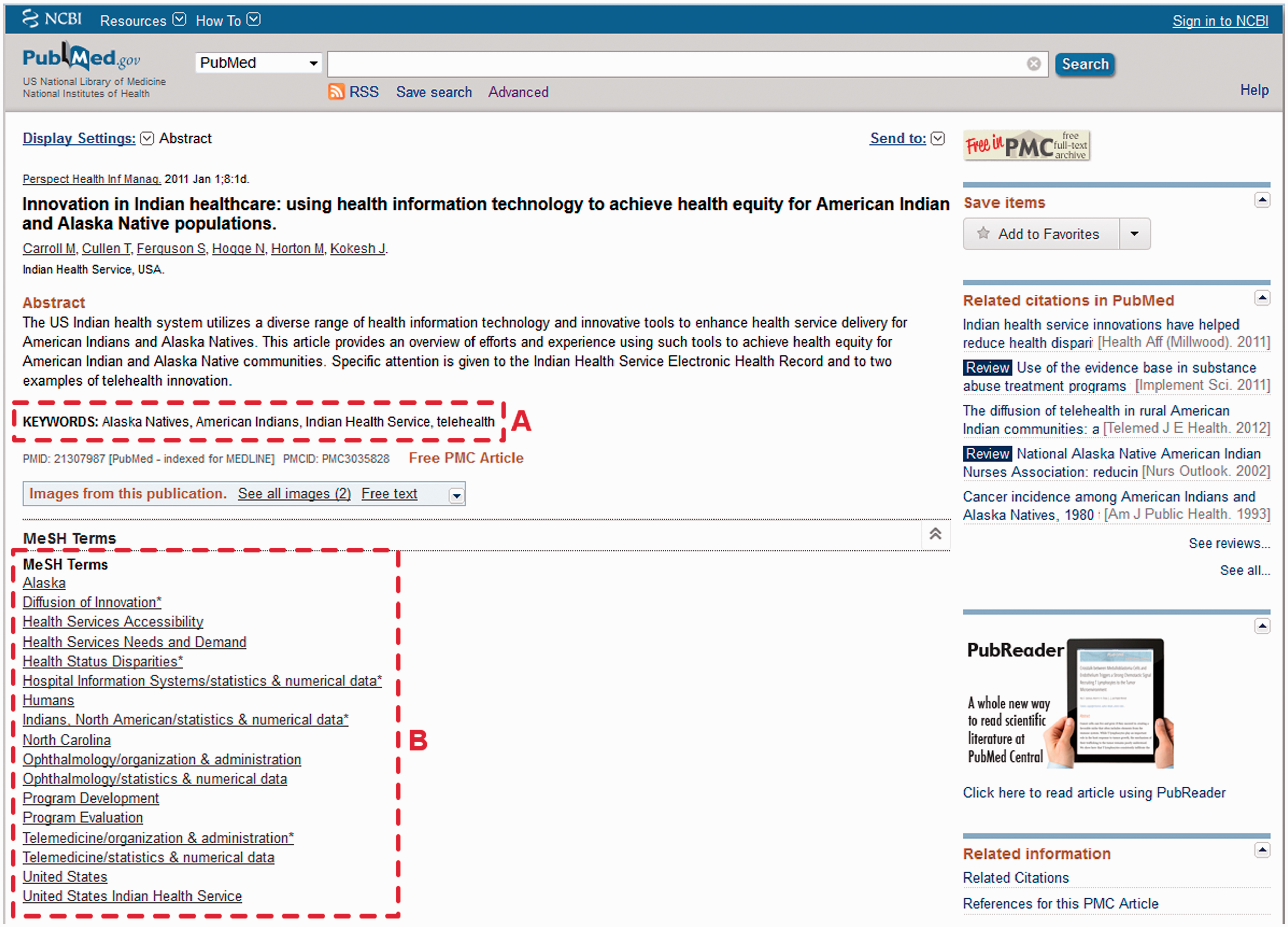
Author search
To search for an author, you need to enter the last name followed by the initial(s) in the search box (i.e. ‘Smith J’). This forces PubMed to search only in the author field of the database, instead of in all the fields. This technique is useful to distinguish between the name of an author and a disease which is named after a person (such as J Parkinson, vs. Parkinson's disease). An author search can also be performed using the Advanced Search Builder by selecting Author from the drop down menu. It is equivalent to entering ‘parkinson j[Author]’ in the search box (which is quicker for frequent PubMed users). The abbreviation for [Author] is [au].
If no first name or middle name is entered, PubMed truncates the author name to account for all variations of that name. Thus ‘smith p[Author]’ will retrieve publications from P. A. Smith, P. B. Smith, and so on. To stop this truncation, you need to enclose the author name in double quotation marks (e.g. “smith p”[author]).
Recognition of a particular author's contribution to a scientific work is problematic for all electronic databases. Many names (either first name or family name) are not unique, they can change over time (with marriage, for instance), and can be ordered differently in different cultures and languages. In 2002 the NLM started indexing full author names, if supplied by the journals. This makes it possible to search for fairly recent papers from a specific author by entering the full name (e.g. ‘John Smith’). This can help with the problem of different authors with the same initials, but it may exclude some records if the journal does not list the authors by their full name. To distinguish between first name and last name, the full author name should be entered as ‘Lastname, Firstname’. If no comma is used, then PubMed will consider all possible combination of the entered names (i.e. ‘Paul Smith’ will be interpreted as ‘Smith, Paul’ as well as ‘Paul, Smith’.
Other database providers have developed their own ID schemes to identify the authors in their databases. However, these proprietary solutions require authors to create and maintain an account with each database that indexes their scholar publications. To provide a global and non-proprietary author identification system, the ORCID (Open Researcher and Contributor ID) was launched in October 2012. 2 The NLM added the AUID (Author Identifier) field to MEDLINE database which can contain the author's ORCID if supplied by the publisher.
Title search
For various reasons, you may need to search just within the title of articles. For example, you might be searching for a specific paper or you might recall a few words of the title.
The field tag for title is [Title] or [ti]. Thus to search for articles which have the word telemedicine in their title, you can enter ‘telemedicine[title]’ as the search term. However, to focus this search on diabetes, for example, and search for articles that have both telemedicine and diabetes in their title you cannot simply enter ‘telemedicine diabetes[title]’ because PubMed considers all consecutive untagged terms before each tag as a phrase for that tag. Thus in this instance it will search for the articles that have the phrase “telemedicine diabetes” in their title and consequently will retrieve no result. For this purpose, you need to enter each term with the [title] tag separately: ‘telemedicine[title] diabetes[title]’. The order of the terms does not matter here as PubMed will search for each term in the title of articles separately and then combine the results with AND (the default Boolean operator for search queries with two or more terms). That is the case when searching for a specific paper that you recall part of the title, or just a few words of its title; in the first instance you can enter part of the title followed by [title] tag, but for the latter instance you need to enter [title] tag for each term.
Single-article search
There is a special tool for finding a specific paper, the PubMed Single Citation Matcher. This can be accessed from the PubMed homepage, under the Tools group. Using this tool, you can enter as much information as available regarding the paper, including the journal name, author, title words, publication date and other details. PubMed will use this information to locate the article(s) which match the criteria supplied. None of these fields is a required field, but at least one field must be entered. The more information provided for this search, the more specific will be the results.
Journal search
Sometimes you may be trying to find a paper in a particular journal, so you need to search for records from that journal. This can be done either via the Advanced Search Builder or directly by entering the relevant field tag into the search box. On the
A problem with the Journal search in PubMed is that the journal name -- either the complete name or the standard abbreviated form -- is treated as an exact phrase, thus must be entered precisely and completely. It is not possible to retrieve records where the search term is part of the journal name. So if you are looking for articles published in journals with telemedicine in their title (e.g. Journal of Telemedicine and Telecare, and Telemedicine and E-health) it is not possible to conduct this search by entering ‘telemedicine[Journal]’. In fact searching PubMed with ‘telemedicine[Journal]’ returns no result because there is no journal by the exact name of ‘Telemedicine’. For the same reason, the order of the terms in a Journal search is important. For example to search for articles published in the Diabetes Care journal, you cannot enter ‘care diabetes[Journal]’. To avoid these problems, it is better to use the Advanced Search Builder interface when you are not sure of the exact title of the journal. That interface provides autosuggestion which will help with a list of journal names as soon as the second letter of the search term is entered in the search box (Figure 10).
The autosuggestion feature in Advanced Search Builder.
Identifying journals
The most common use of PubMed is to search for articles, either in all journals or in a specific journal. But PubMed can also be used to search for information about the journals themselves. To search for details of the journals which are indexed in MEDLINE (either currently or previously) you need to use the NLM Catalog. This database can be accessed by clicking on
In the NLM Catalog, you can search for journals (not articles) based on information such as topic, title, title abbreviation or ISSN (Figure 11). In addition to journals, the database contains information about books, book chapters, manuscripts, still images, video-recordings, sound-recordings and electronic resources. To limit your search to journals, you can activate the The web page for the journals in the NLM Catalog.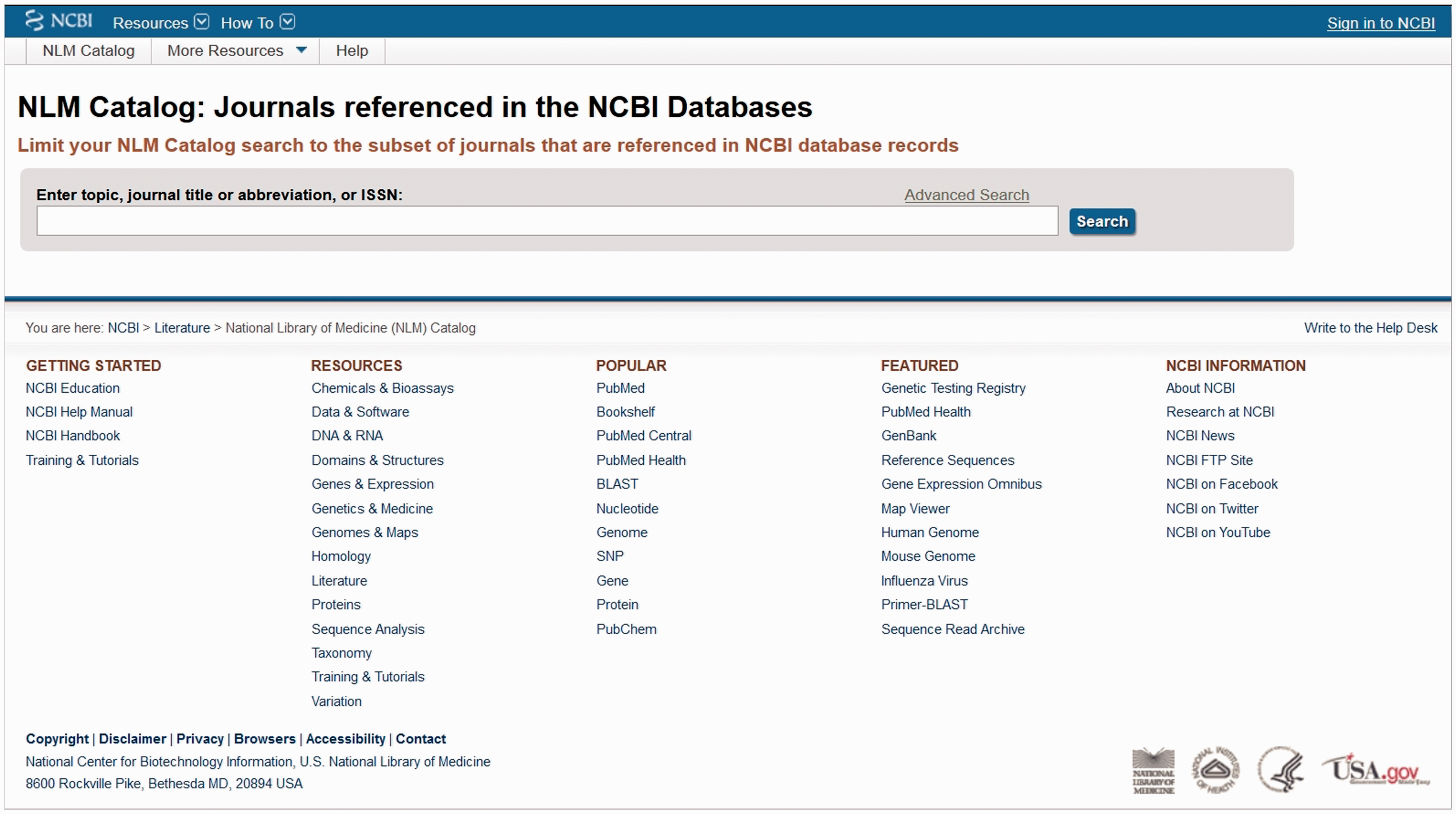
By clicking on the name of the record, the full description of that resource is shown. For journals, this information includes title, title abbreviations, previous titles, frequency, publisher and so on. Figure 12 shows the full description from the NLM Catalog for the journal of Telemedicine and e-Health. This shows that the title of this journal has changed twice since it was first indexed in MEDLINE, thus the articles of this journal have been indexed under three different journal titles in the database. This may affect comprehensive literature reviews and bibliometric analyses.
Description of a journal in the NLM Catalog.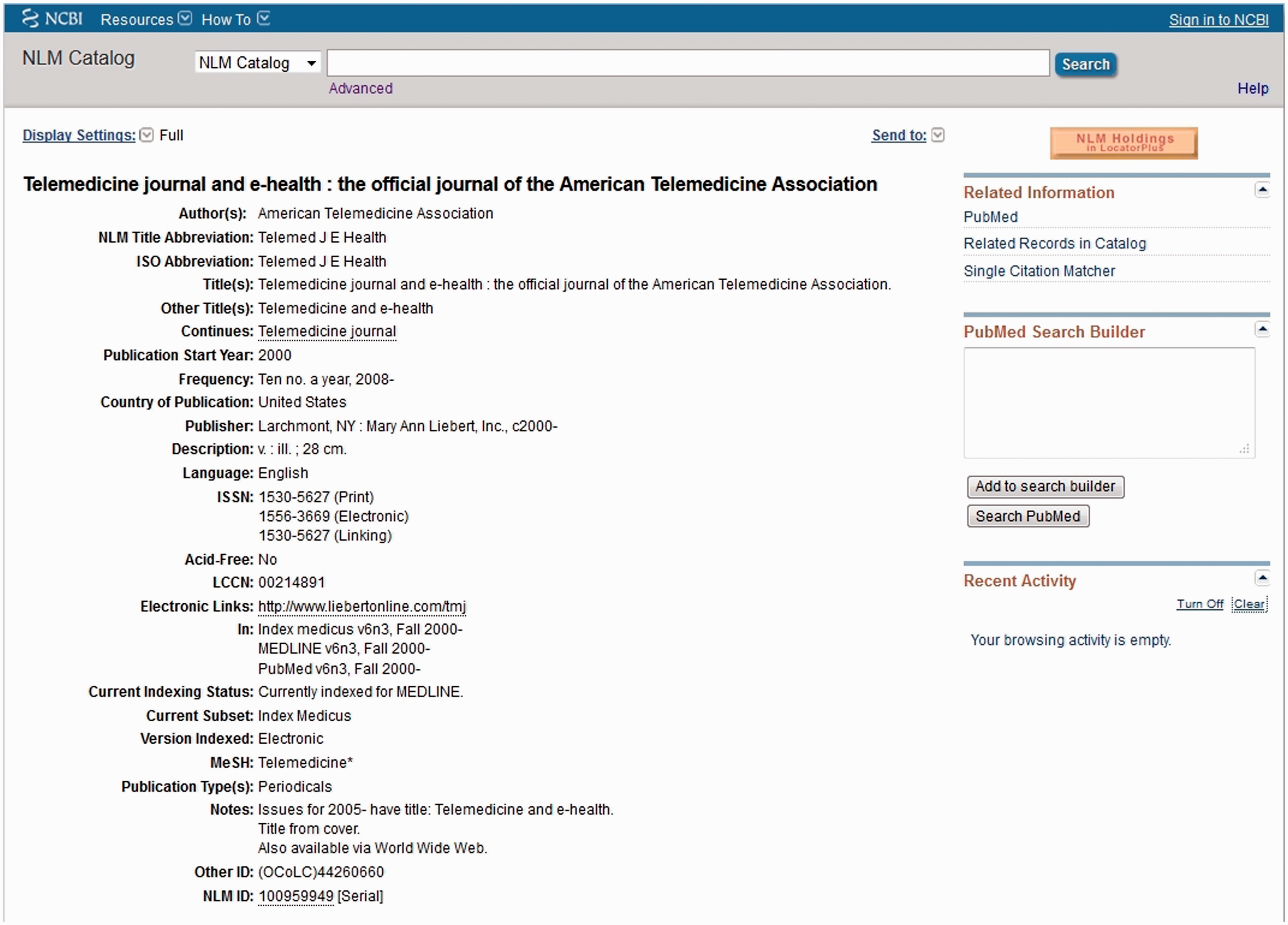
How do I search for RCTs or reviews?
Common types of articles and the corresponding PubMed search terms.
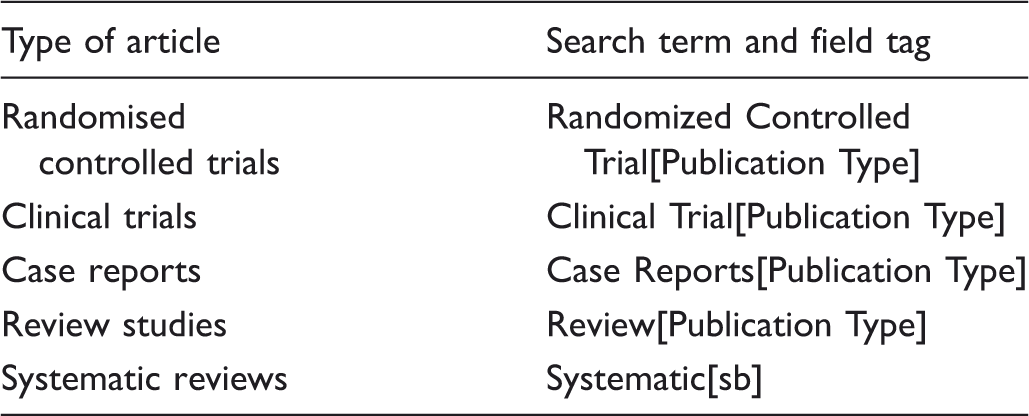
Note that the field tag for systematic reviews is [sb], not [ptyp]. Thus to search for systematic reviews on telemedicine, you can enter ‘telemedicine AND systematic[sb]’ as your search query in the search box. This will produce almost 500 hits, or about 3% of all articles on telemedicine.
How do I search for clinical papers?
To retrieve clinical articles, rather than those about basic science or health services research, you can use another feature of PubMed called Clinical Queries. The link to this tool is on the PubMed home page. Clinical Queries is a set of precisely developed filters which produce results in three different groups: Clinical Studies, Systematic Reviews and Medical Genetics (Figure 13).
Clinical Queries result page after searching for diabetes.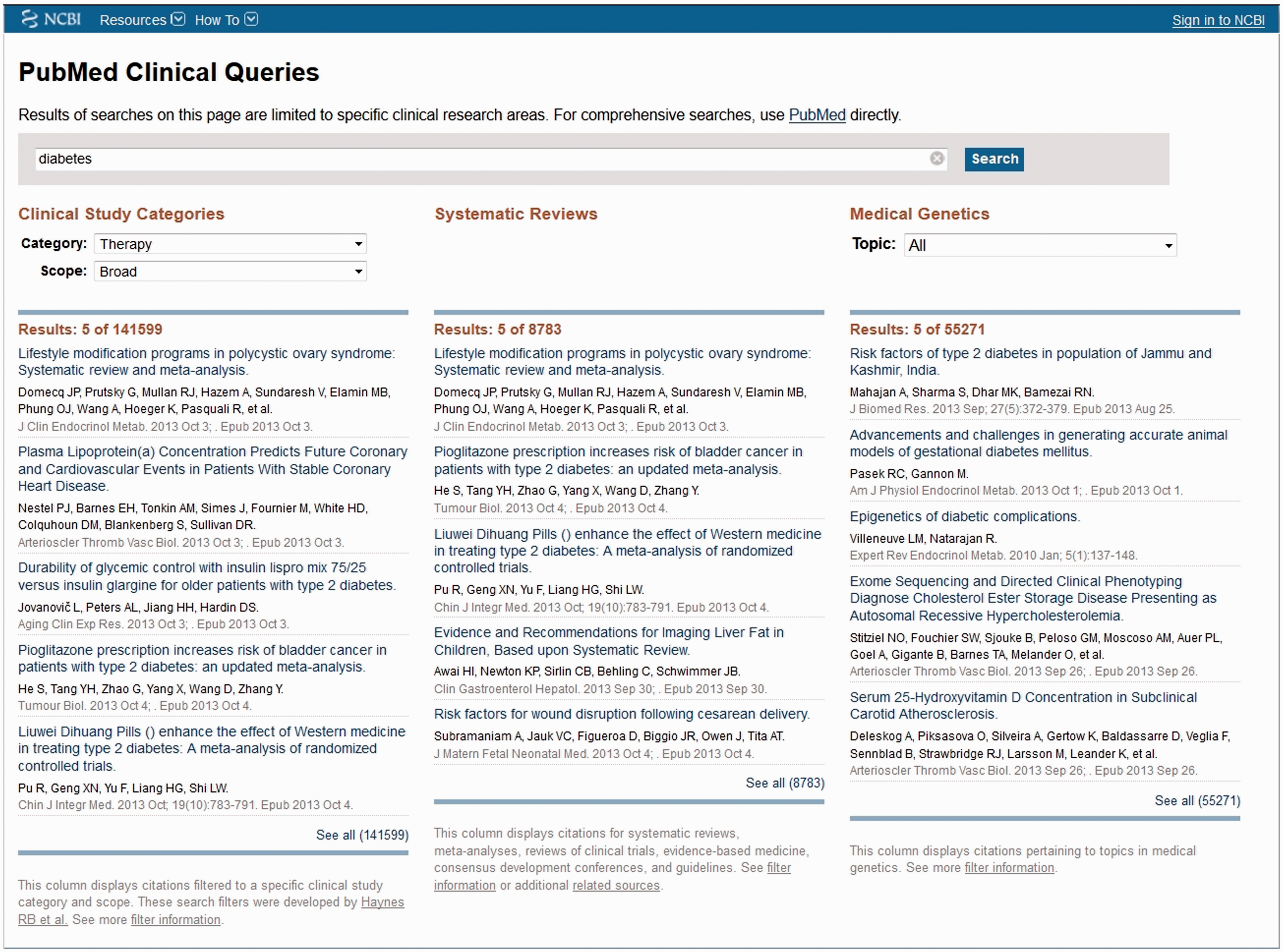
After performing a search, a preview page shows the first five results in each group. Dropdown boxes allow further fine-tuning. For example, you can choose the category of clinical studies from five options: etiology, diagnosis, therapy, prognosis and clinical prediction guides. You can also change the scope of the search from Broad (more results, more sensitive) to Narrow (fewer results, more specific). By clicking on
The systematic Reviews section can retrieve meta-analyses, reviews of clinical trials, evidence-based medicine, consensus development conferences and guidelines, in addition to systematic reviews. 3
How do I fine-tune my search?
You can fine-tune your search results in various ways, by taking advantage of the features provided by the PubMed search engine.
Narrowing and broadening search
In most situations, users want a search to produce a “reasonable” number of results, so that they can screen the titles, if not the abstracts, of the articles in the result list. However the optimum number of results varies from user to user and depends on the purpose of the search. Anecdotally, the optimum number of results per search is 50-200. So it is important to be able to narrow down the search if too many results are produced, or vice versa.
There are several techniques by which you can narrow down (or focus) a search:
(1) Select your search terms to be as specific as possible and replace general search terms with more specific ones, if possible. For example using ‘myocardial infarction’ instead of ‘heart diseases’ will decrease the search results by nearly five-fold (2) Make your search more specific by adding more search terms to your search query (3) Apply one or more of the filters which are shown on the left-hand sidebar of the results page. This can be used to restrict the results by article type, publication date, species of the subjects, age group and so on.
To broaden your search in the case of too few results, the techniques are generally the opposite of those for narrowing the search:
(1) Replace specific terms with more general terms in your search query (2) Try to find synonym search terms and combine them with your search terms using the OR operator. (3) Remove any filters that you may have used in past searches. If a filter is applied, PubMed prompts you with ‘Filters activated:’ followed by the name of the filter. Filters can be deactivated one by one from the sidebar or all at once by clicking on the (4) Click on ‘Related citations’ at the very last line of a record that seems most relevant to your topic.
Spelling
If you enter a wrongly spelt word as the search term, and no record is found for that misspelt term, then PubMed will prompt you. For example, if you enter ‘insoolin’ instead of ‘insulin’, PubMed will automatically find the nearest correct spelling for that term (insulin in this example), prompt ‘Showing results for insulin. Your search for insoolin retrieved no results', search for it, and show the results (Figure 14).
Search results for a potentially mis-spelled term returning no results.
However if the number of search results for the entered term is not zero but very low, PubMed will cautiously regard it as a potential mis-spelling and provide you with a similarly spelled term that would yield a large number of results in PubMed. For example if you search for ‘telemedicin’, as there are five articles referring to this term, PubMed shows the results for this potentially mis-spelled term, but will prompt you with ‘Did you mean: telemedicine (nnnn items)’ (Figure 15). This behaviour may be familiar to you from Google searching. The alternative spelling that PubMed suggests is based on the frequency of appearance in PubMed, rather than a dictionary based algorithm. This feature works only for untagged terms, so if you enter a search term with a field tag (e.g. insoolin[title]) no suggestion or correction on the spelling will be given.
Search results for a potentially mis-spelled term returning a small number of results.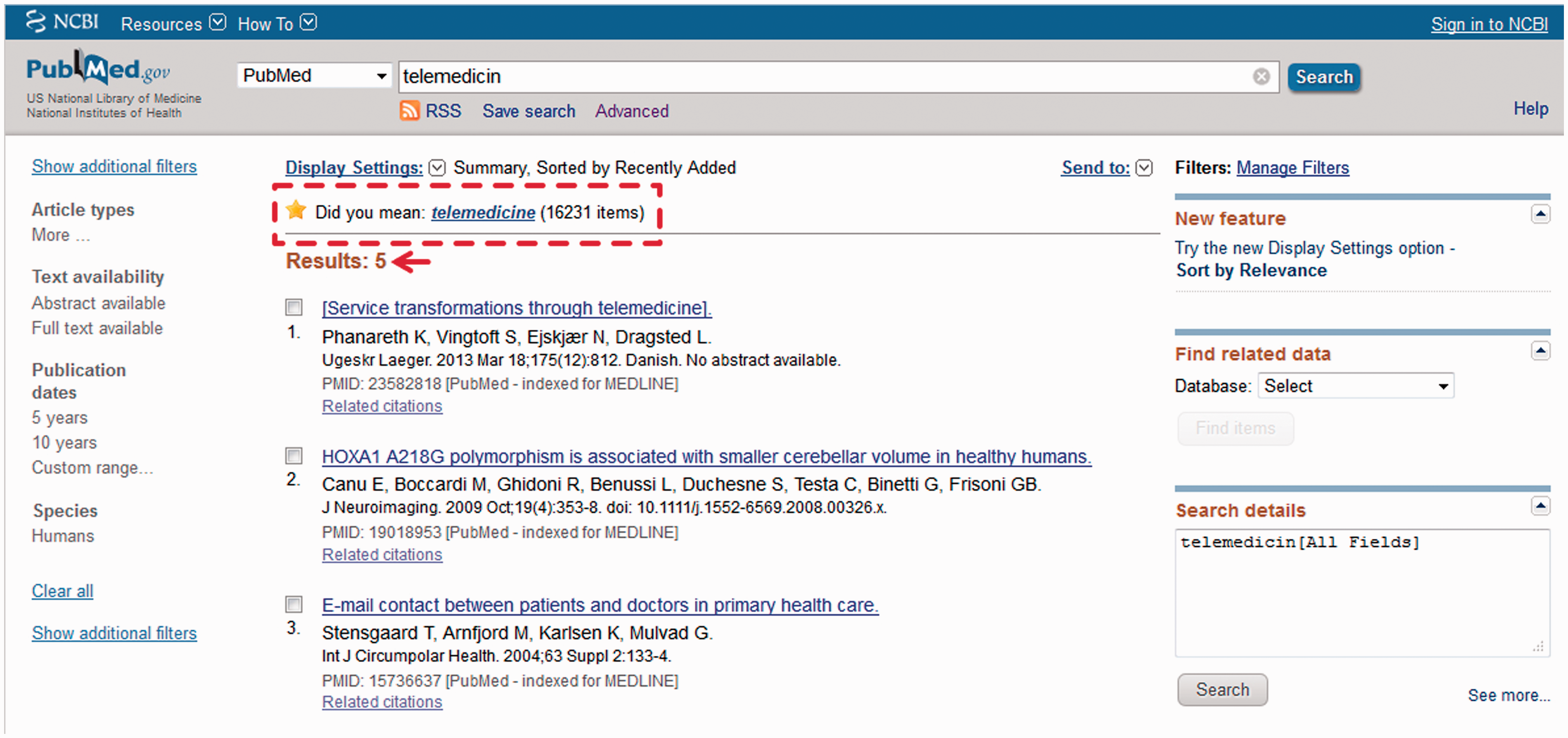
PubMed takes care of the spelling variations between American-English and British-English during simple searches (when the search term is entered without any field tag). For example ‘pediatrics’ and ‘paediatrics’ both retrieve the same number of results (277,104), because the search term goes through Automatic Term Mapping and is translated into MeSH terms. However, if the term is entered with a field tag, the results may be quite different. For example, ‘pediatrics[title]’ returns 9520 results while ‘paediatrics[title]’ returns 1294 results. This issue is important in developing a search strategy for systematic reviews.
Stopwords
PubMed ignores more than 130 common but uninformative words (known as stopwords) such as a, an, and, all, by, but, most, quite, the, with. So if you search for any of those words, no result will be returned. That is why searching for ‘most patients’ and ‘patients’ will return exactly the same results. If you would like a stopword to be included in your search query, you need to indicate it as part of a phrase enclosed by double quotation marks, such as “most patients”. The complete list of stopwords in PubMed is available at: http://www.ncbi.nlm.nih.gov/books/NBK3827/table/pubmedhelp.T43/?report=objectonly
Abbreviations and acronyms
You should avoid using abbreviations and acronyms as search terms in PubMed, even if those terms seem well-known. For example, using BP instead of blood pressure will cause PubMed to search for articles published in the Body Positive magazine. Similarly PubMed translates CT into contraindications rather than Computed Tomography. The same is true for the abbreviation of journal names. For example JAMA will be interpreted as “junctional adhesion molecule a”.
Some acronyms are considered as stopwords by PubMed and will be ignored. For example IT, even if entered in capital letters, will be considered as a stopword (it) and ignored. So it is preferable to enter ‘information technology’ in full when searching, e.g. to search for articles on IT and diabetes you need to enter ‘information technology diabetes’, as your search query, or to be more specific,‘ “information technology” AND diabetes’.
Acronyms may stand for different expressions in different contexts. For example, MIS stands for Management Information Systems, Minimally Invasive Surgery, Malaria Indicator Survey and several other expressions. So it is almost always better to use the full expression instead of its abbreviation or acronym. The only situation when an acronym can be used safely as a search term in PubMed is when it is a MeSH term. For example MRI is a MeSH term that is translated into Magnetic Resonance Imaging by PubMed. This is a good reason to start your PubMed search from the MeSH database.
Special characters
Certain characters have special meaning in PubMed. For example, parentheses () are used to create nesting in logical expressions, square brackets [ ] are used for field tags, double quotation marks “ ” force a phrase search, and the asterisk * is the wildcard symbol for search term truncation. The forward slash / has a special meaning in MeSH terms, as described in Part 3.
Other special characters are converted to spaces in search queries. These include the exclamation mark !, dollar sign $, percentage sign %, plus symbol +, minus symbol −, full-stop ., semi-colon ;, angle brackets < >, equal sign =, question mark ?, backslash \, caret ○, underscore _, curly brackets { } and tilde ∼. That is why ‘store-and-forward’ returns the same results as “store and forward”.
Capitalisation
Although the case of letters is preserved when articles are indexed in PubMed/MEDLINE, capitalisation of search terms does not matter in PubMed search. Thus ‘information technology’ and ‘Information Technology’ retrieve exactly the same results. That is also true for author name, journal name and other fields. According to PubMed tutorials and technical documents, the only situation when the case of letters does matter is when the three Boolean operators are used: they must be entered all in capitals. However simple observation shows that the Boolean operators appear to work properly even if they are entered in lowercase.
In Part 3 of this series, the PubMed Advanced Search Builder, search history, Medical Subject Heading (MeSH), Automatic Term Mapping, and My NCBI are described.