onlyuseful is a command that automates dataset reduction by retaining only the variables explicitly used in a Stata script. By leveraging PowerShell, it enhances reproducibility and efficiency in data management for large datasets and supports research replicability.
In an era where data-driven research spans nearly all scientific disciplines, the ability to manage and reduce complex datasets efficiently has become increasingly important. Fields such as economics, sociology, public health, and environmental science often involve large-scale datasets containing hundreds or thousands of variables—many of which are ultimately unused in analysis. Reducing a dataset to its analytical core improves clarity, lowers memory and storage demands, and facilitates collaboration, particularly in team-based or longitudinal projects. Because of these practical challenges, tools that support systematic dataset reduction have become essential. Such tools also promote transparency and reproducibility by making data preparation steps more explicit and easier to replicate.
This article introduces onlyuseful, a command that integrates with PowerShell to automate dataset reduction, ensuring that only essential variables are retained while unnecessary data are excluded. This utility not only simplifies data handling but also reduces memory and processing demands, which can be substantial for researchers working with extensive datasets. The tool provides users with flexibility in setting custom paths and filenames, thus allowing seamless adaptation to various research environments. By automating the identification and retention of relevant variables, onlyuseful enables researchers to streamline data management in a reproducible and efficient manner.
Beyond improving efficiency, the package also contributes to replicability. By facilitating cleaner, leaner datasets and automating the preparation process, onlyuseful helps ensure that data workflows are consistent, well-documented, and easily shared. Its tight integration with Stata allows users to stay within their primary analytical environment, minimizing reliance on external tools. In doing so, it addresses a key challenge in modern research: maintaining transparency and reproducibility amid growing data complexity.
At the core of the package is the synergy between Stata and PowerShell. PowerShell complements Stata’s analytical environment by enabling advanced scripting, pattern- based variable selection, and efficient file-system operations. These capabilities allow onlyuseful to support flexible and scalable workflows—such as applying consistent reduction logic across multiple datasets or directories—that would be difficult or cumbersome to implement using Stata alone. By leveraging this synergy, the tool facilitates cleaner data pipelines, particularly in projects involving repeated analyses, structured directory layouts, or collaborative teams. The result is a more efficient and maintainable data-reduction process that not only streamlines analysis but also enhances documentation and reproducibility.
The onlyuseful command
Syntax
The onlyuseful command streamlines dataset reduction by automating the retention of essential variables. It leverages PowerShell to dynamically analyze a dataset and generate scripts that perform variable retention and file management tasks. By referencing a user-specified text file (more detail on this below), onlyuseful identifies variables to retain, manages input and output file paths, and saves the reduced dataset with minimal manual intervention.
The syntax for the onlyuseful command is
The using argument specifies the name of the original do-file with analyses on the dataset to be reduced. This file will be parsed by the package to identify the variables to retain.
Options
onlyuseful includes several options for customizing file paths, filenames, and Power- Shell script management.[1]
dta(string) specifies the name of the dataset to be reduced. dta() is required.
powershellscript(string) specifies the name of the PowerShell script file to be generated and executed. The default is powershellscript(powershellscript).
lpowershellscript(string) specifies the directory path where the PowerShell script file is saved. The default is the current working directory.
ldta(string) specifies the directory path where the original .dta file is located. The default is the current working directory.
newdta(string) specifies the name of the reduced dataset. If this option is not specified, onlyuseful will conduct a dry run and produce only the reduced do-file that the user will run separately.
stataexe(string) specifies the path to the Stata executable file, which is required for external batch processing. This option is required if newdta() is specified.
lnewdta(string) specifies the directory path where the reduced .dta file will be saved. The default is the current working directory.
dropscript(string) specifies the name of the do-file generated to keep only retained variables. The default is dropscript(dropscript).
ldropscript(string) specifies the directory path where the generated do-file will be saved. The default is the current working directory.
Technical details on PowerShell
onlyuseful makes use of PowerShell, which is a versatile task automation and configuration management tool developed by Microsoft. While it was originally designed for Windows, PowerShell has evolved into an open-source, cross-platform utility available for macOS and Linux users as well. Its ability to execute scripts and automate repetitive tasks complements Stata’s capabilities, particularly for advanced workflows such as those facilitated by onlyuseful.
Role of PowerShell in onlyuseful
onlyuseful relies on PowerShell to perform one essential operation that extends Stata’s native functionality.
PowerShell executes commands for dataset reduction. By invoking PowerShell commands, onlyuseful automates the identification and retention of relevant variables as specified by the user. This process minimizes manual intervention and ensures that unnecessary variables are excluded from the resulting dataset.
Accessing PowerShell
For Windows users, PowerShell is included by default in all modern versions of the operating system (starting with Windows 7 for PowerShell 2.0 and Windows 10 for newer versions). To access PowerShell, users can simply search for “PowerShell” in the Start menu or type powershell in the Run dialog box (Win+R).
For macOS and Linux users, PowerShell is not preinstalled and must be downloaded and installed separately. Users can download the latest version from the official Power- Shell GitHub repository. Installation instructions are available on the repository for all supported platforms. Once installed, PowerShell can be accessed through the terminal by typing pwsh.
New PowerShell users should note that they may not have sufficient administrative privileges by default to perform the operations in onlyuseful. First-time users should open PowerShell as administrators, type
and then press the Enter key.
This command should be used only the first time onlyuseful is run on a specific machine. It lifts restrictions so that certain scripts and files may be executed.
Alternatively, to check and change the execution policy, the user can open PowerShell from within Stata and give the following commands:
The first line opens PowerShell and gives the command to check the current execution policy list. If -CurrentUser is not unrestricted, the user must open PowerShell and set the policy to Unrestricted, which is done in the second line. If, for security reasons, the user wants to have the unrestricted policy execution only when onlyuseful is used, the user can revert the restriction policy with the following command:
Note that Restricted can be substituted by Default and lead to the same result because the default value is usually Restricted.
If administration rights are needed, the user can open PowerShell from within Stata by typing
This command opens a window called User Account Control, which asks to allow PowerShell to make changes to the device. The user should select Yes. Afterward, the Command window named Administrator: PowerShell opens. At the end of the first line—where the last character is >—the user should type
and then press the Enter key. The option -Force tells PowerShell to skip the confirmation prompt. That is, it does not ask the user to confirm the change to the execution policy.
General remarks
If newdta() is specified, onlyuseful writes a PowerShell script. Then PowerShell translates that script into a new Stata do-file and starts Stata in batch mode. This session in batch mode will run the new reducing do-file and save the new reduced .dta file. Because this is done in batch mode, Stata automatically produces a .log file that can be found in the working directory by default.[2] If newdta() is not specified, onlyuseful writes a PowerShell script, and PowerShell translates that script into a new Stata do-file. In this case, the user will run the new do-file separately.
File extensions (that is, .dta, .do, .ps1, .exe) are not mandatory.
Because of the nature of PowerShell coding, paths cannot include blank spaces; the only exception to this rule is the path for the Stata executable file.
Neither paths nor filenames need to be within quotes.
The user may or may not include the final \ or / in the paths—depending on whether Windows versus macOS or Linux is used. If the user does not rely on default paths and uses wrong personalized paths, Stata will display any error message.
The onlyuseful command works properly only if variables in the do-file are spelled exactly the same as in the .dta file. This means that PowerShell does not find a match in the do-file if this includes wildcard expressions to refer to groups of variables. For example, if the do-file includes abbreviations such as year* for variables year1999, year2000, and year2001, no year variable will be dropped. Similarly, PowerShell does not find a match if the do-file includes simple abbreviations, for example, yearof instead of the complete name yearofbirth. onlyuseful has the equivalent behavior when the do-file includes year1999-year2001. In this case, only year1999 and year2001 would be dropped, while year2000 will not. Our suggested workaround is to conduct a dry run and then modify the reduced do-file by adding these variable names in full.
Alternatively, the user could add complete variable names in the original do-file—even if the names are commented out. PowerShell scans the original do-file in full for strings without differentiating between what is commented out or not.
Workflow
Four operations are conducted sequentially. First, onlyuseful opens the .dta file to be reduced. Second, PowerShell writes the preamble of a .ps1 script. Third, PowerShell obtains the list of variables from step 1 by means of the command ds. Last, PowerShell completes the .ps1 script with commands telling PowerShell to parse the original do-file for strings included in the list obtained in step 3.
If the newdta() option is specified, PowerShell adds to the .ps1 script the command to open Stata in batch mode and run the do-file in step 4. In this case, Stata creates a .log file, and the name of this file is the same as that of the do-file in step 4 by default. This file shows the list of variables that have been kept and tells the user the quantity of variables that were dropped. The latter information is the stored result of keep, that is, r(k_drop), and thus is not available prior to Stata 16.
Below, we demonstrate how onlyuseful can be applied in practice. The examples cover typical scenarios for reducing datasets, specifying custom output paths and filenames, and managing script generation. The last subsection presents some examples with error messages or redundant details.
Examples
Before starting the examples, the user should set the working directory, such as C:\Project\Data; this is also what we call this project subfolder in the examples below.
Then the user must place analysis_script1.do and analysis_script2.do in C:\Project\Data.
A copy of analysis_script2.do should be saved in the subsubfolder C:\Project\Data\garbage.
Also, the user should download a standard Stata dataset and save it with the name mydata.dta in the project subfolder:
Below, we refer to the dataset to be reduced as mydata.dta.
Additionally, to replicate the examples in section 5, the user should personalize the anonymized do-file examples_onlyuseful_anonym.do with the appropriate paths in their machine.
Finally, the user should remember to set up the appropriate administrative privileges, as discussed in section 3.2; then the examples can be replicated.
In those examples where the option newdta() is specified and Stata opens a new session in batch mode to produce the reduced .dta file, we recommend that the user close the Stata window announcing that the .log file has been saved before running the next example.
Paths in the following examples make use of \ because the authors use Windows operating systems; however, the package standardizes all slashes to forward slashes automatically.
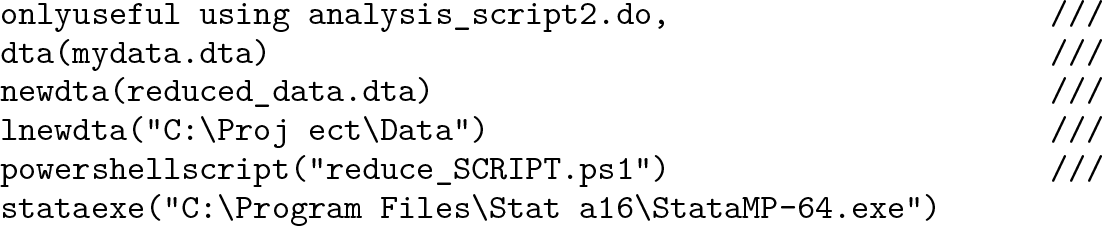
Example 1: Basic dataset reduction—dry run
In this basic example, onlyuseful writes the new do-file that will run separately to reduce the original mydata.dta.
The user must substitute the content of stataexe() with the actual Stata .exe location. Because the user is now conducting a dry run, the specification of this option is simply redundant, and Stata displays a simple message about this redundancy.[3]
All other locations and names are the default ones, as illustrated in section 3.
Because this example does not give the dropscript() value, the default value is used. The user can open dropscript.do and verify that the list variables reported after the command keep correspond to the variables used in analysis_script1.do.
Example 2: Custom file paths and names—batch mode
onlyuseful creates the reduced dataset with a specific name and path, for example, reduced_data.dta in the working directory C:\Project\Data,[4] and names the Pow- erShell script.
All other locations and names are the default ones, as illustrated in section 3. The user can replicate this example without lnewdta() and see that reduced_data.dta will be stored in the same folder because it corresponds to the working directory. This example additionally sets a personalized name of the PowerShell script, but its path is the default one, that is, the working directory. Because the reduced .dta file is created in batch mode, a .log file will automatically be created and saved in the working directory.
Example 3: Custom input and metadata paths—batch mode
Suppose that the original do-file is not located in the working directory but in the project subsubfolder garbage and that the location of the original dataset is in the working directory C:\Project\Data. The user can type
All other paths and names are the defaults, as illustrated in section 3. Thus, by default, the reduced .dta file produced in batch mode is saved in the working directory.
Example 4: Custom PowerShell file paths and names—dry run
The user might want to customize the name and location of the PowerShell script as well as the name and location of the do-file created in the dry run. The following command demonstrates this:
All other locations and names are the defaults, as illustrated in section 3.
Example errors or redundant options
This subsection illustrates some cases where onlyuseful contains errors or redundancies and discusses the standardization of slashes.
Here, in both cases, Stata will return an error message suggesting to specify the do-file with using.
Here Stata will return an error message suggesting to specify the original .dta file.
Here Stata will return an error message suggesting that analysis_script11111.do was not found; this is what the user should expect because this file is not included in the replication package.
Here Stata will return an error message suggesting that the path in lnewdta() does not exist and the executable file was not found.
Here the user provided both lnewdta() and stataexe(); however, onlyuseful has conducted a dry run because newdta() was not provided. Stata warns the user of these two redundant options.
Finally, example_onlyuseful_anonym.do repeats alternating slashes (see example 4) both between and within optional paths, including in stataexe(). onlyuseful works as expected.
Conclusions
The onlyuseful command offers a practical and reproducible solution for automating dataset reduction within the Stata environment. It enables users to manage file paths, retain only essential variables, and streamline data workflows with minimal manual intervention. Thanks to its flexible options, the package adapts well to a range of research contexts, particularly those involving large datasets and careful variable selection. Overall, onlyuseful contributes a valuable tool to the Stata community, supporting transparent, efficient, and reproducible data management practices.
One potential area for future development lies in reducing the package’s dependence on PowerShell. Although PowerShell currently plays a central role in enabling smooth variable reduction, replacing this functionality with native Stata commands would increase accessibility and make the tool more user friendly—particularly for users unfamiliar with external scripting environments.
Another current limitation is that the command does not drop variables that are commented out in the do-file. As a result, researchers intending to exclude a variable must manually remove it from the script, which may reduce flexibility during exploratory work.
Finally, a further improvement would be to enhance the program’s handling of wildcard expressions. At present, the command requires exact matches between variable names in the do-files and .dta files. For instance, wildcard patterns such as year* are not recognized. Incorporating functionality to interpret such expressions would significantly increase the tool’s flexibility and better align it with standard Stata programming practices.
Programs and supplemental materials
To install the software files as they existed at the time of publication of this article, type
Supplemental Material
sj-txt-1-stj-10.1177_1536867X261449933 - Supplemental material for onlyuseful: A package that automagically keeps only variables used in the do-file
Supplemental material, sj-txt-1-stj-10.1177_1536867X261449933 for onlyuseful: A package that automagically keeps only variables used in the do-file by Luca Fumarco and Jaroslav Groero in The Stata Journal
Supplemental Material
sj-ps1-1-stj-10.1177_1536867X261449933 - Supplemental material for onlyuseful: A package that automagically keeps only variables used in the do-file
Supplemental material, sj-ps1-1-stj-10.1177_1536867X261449933 for onlyuseful: A package that automagically keeps only variables used in the do-file by Luca Fumarco and Jaroslav Groero in The Stata Journal
Supplemental Material
sj-dta-1-stj-10.1177_1536867X261449933 - Supplemental material for onlyuseful: A package that automagically keeps only variables used in the do-file
Supplemental material, sj-dta-1-stj-10.1177_1536867X261449933 for onlyuseful: A package that automagically keeps only variables used in the do-file by Luca Fumarco and Jaroslav Groero in The Stata Journal
Footnotes
About the authors
Luca Fumarco is an associate professor of economics at Masaryk University. His research interests include labor, education, and health economics; he primarily investigates topics on discrimination and the effects of school starting age. He is an IZA and GLO fellow, an HEDG affiliate, and a J-PAL invited researcher.
Jaroslav Groero is a postdoctoral researcher at the Center for Economic Research and Graduate Education—Economics Institute (CERGE-EI) and GLO. His research focuses on human capital formation, health economics, and labor economics.
Notes
Supplementary Material
Please find the following supplemental material available below.
For Open Access articles published under a Creative Commons License, all supplemental material carries the same license as the article it is associated with.
For non-Open Access articles published, all supplemental material carries a non-exclusive license, and permission requests for re-use of supplemental material or any part of supplemental material shall be sent directly to the copyright owner as specified in the copyright notice associated with the article.






 and then press the Enter key.


 and then press the Enter key. The option